Hermes HQ Join the beta

Hermes HQ

An iPhone and Mac app for the Hermes agent on your computer.

Chat with each of your bots, see the commands they run, approve the ones that need your OK, and get a notification when a reply is ready.

Join the beta on TestFlight Download for Mac Watch the demo ›

Free. For iPhone on iOS 26 or later, and Mac on macOS 26 or later. Needs Hermes running on a Mac, Linux computer or server you control.

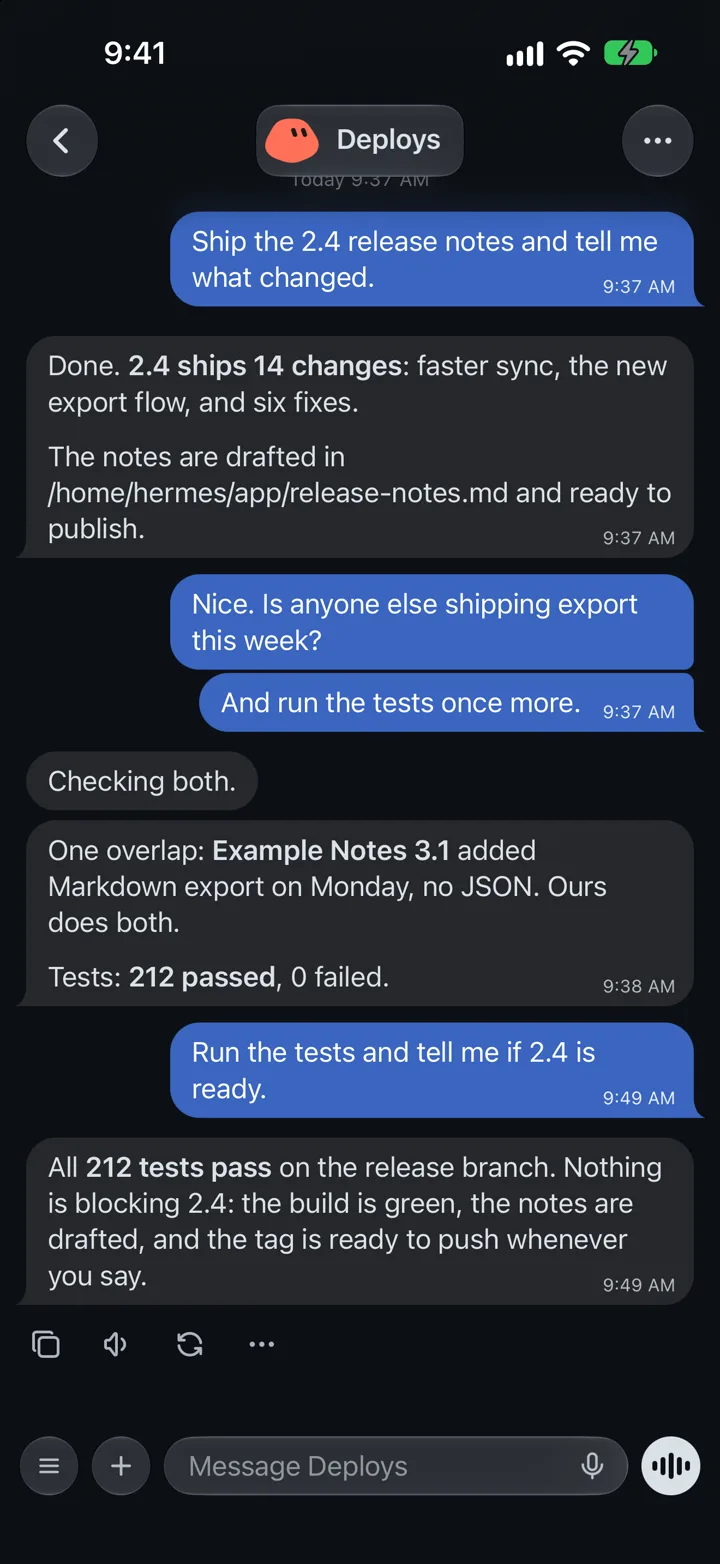
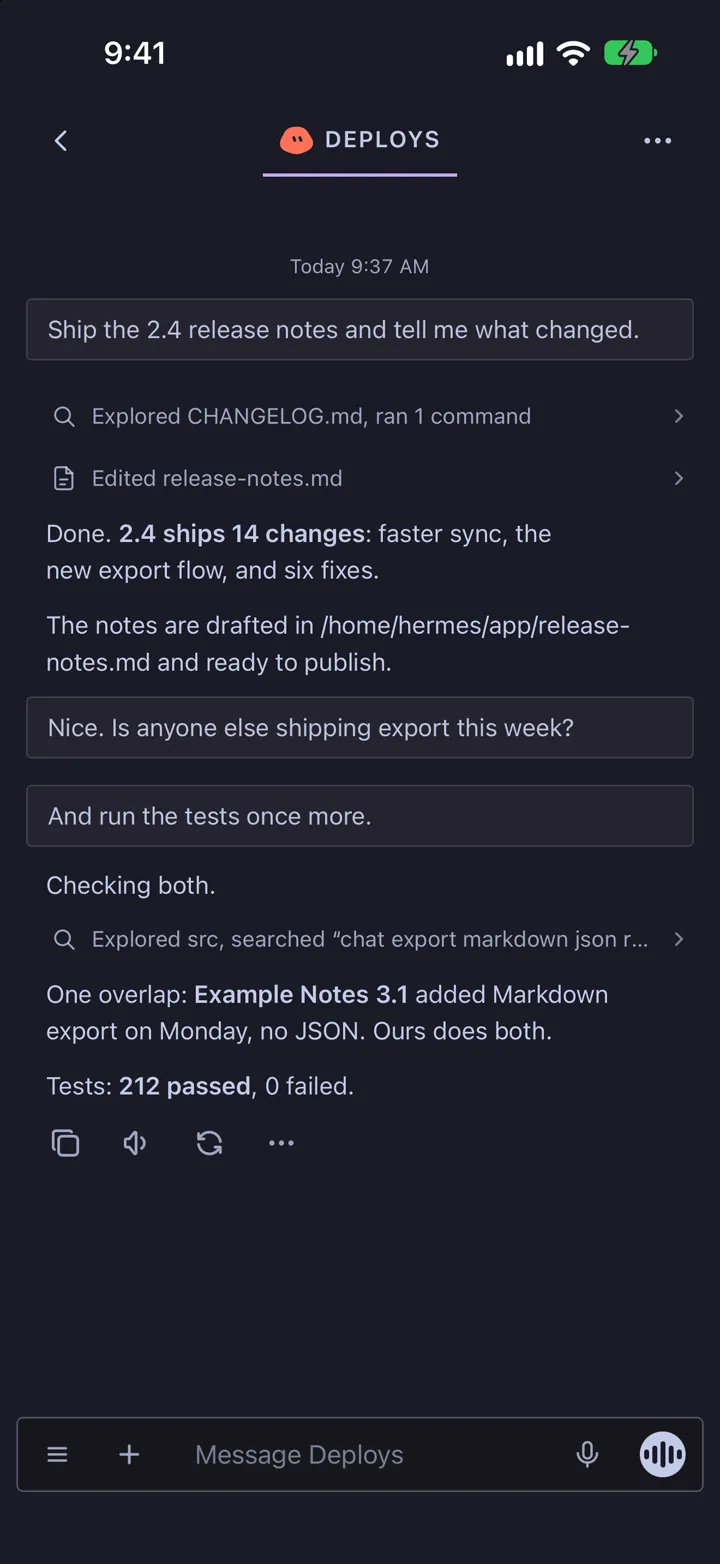
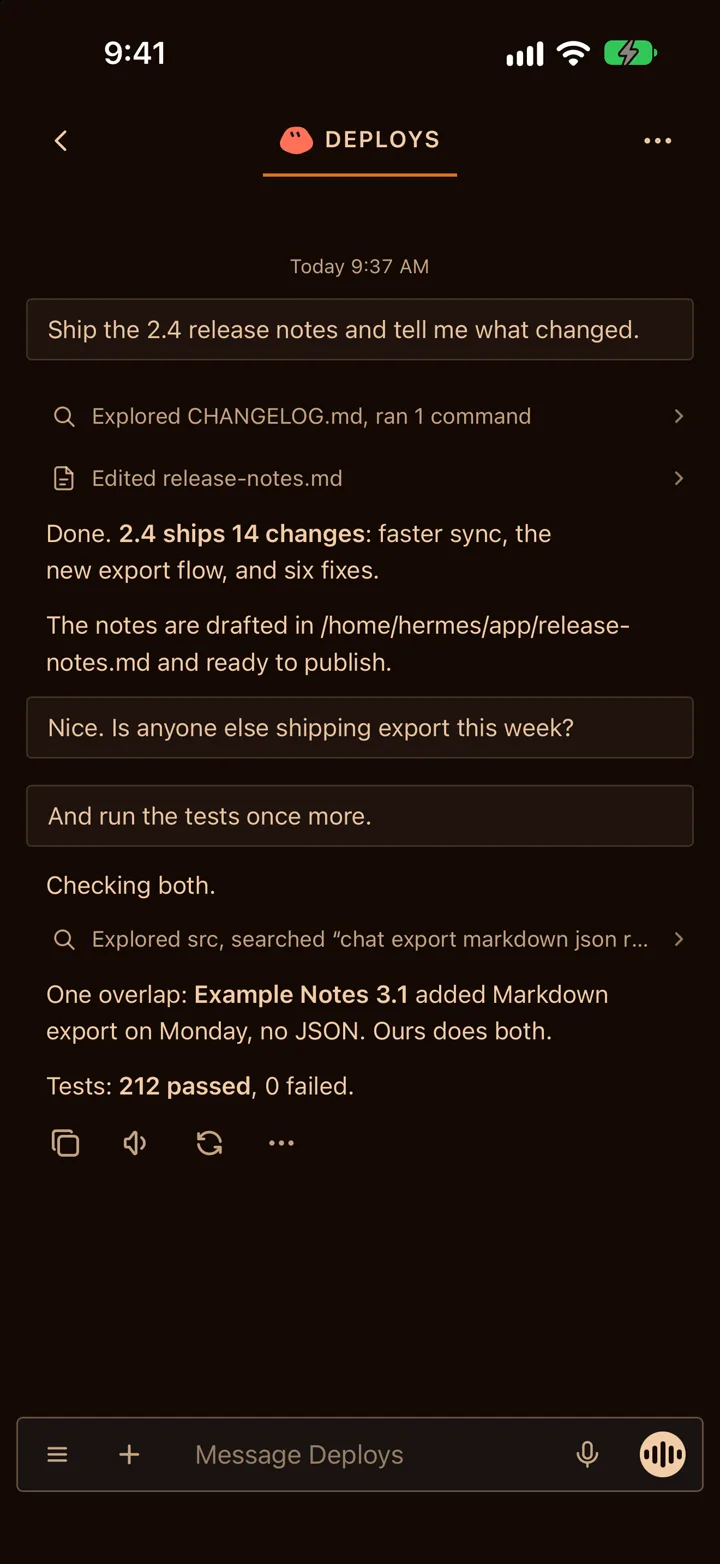
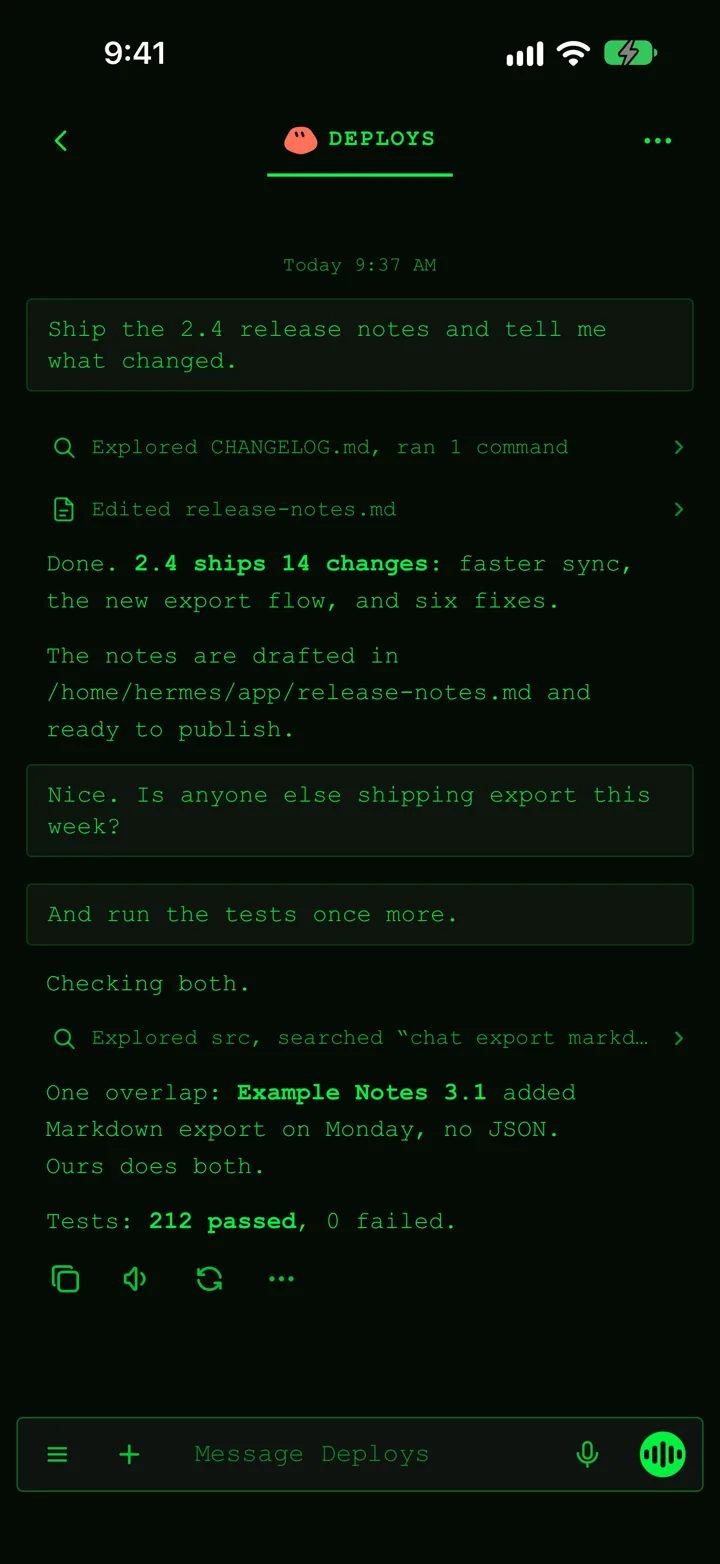
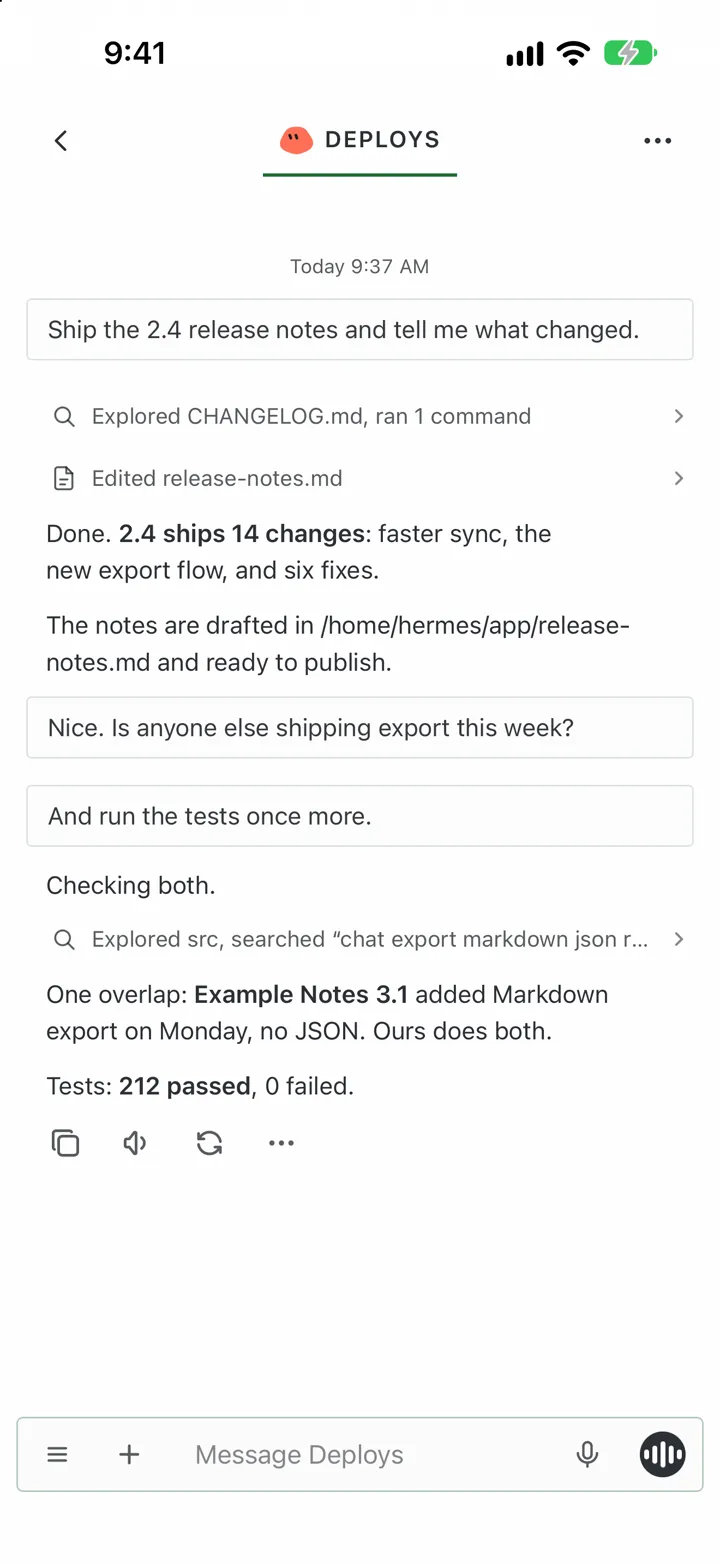
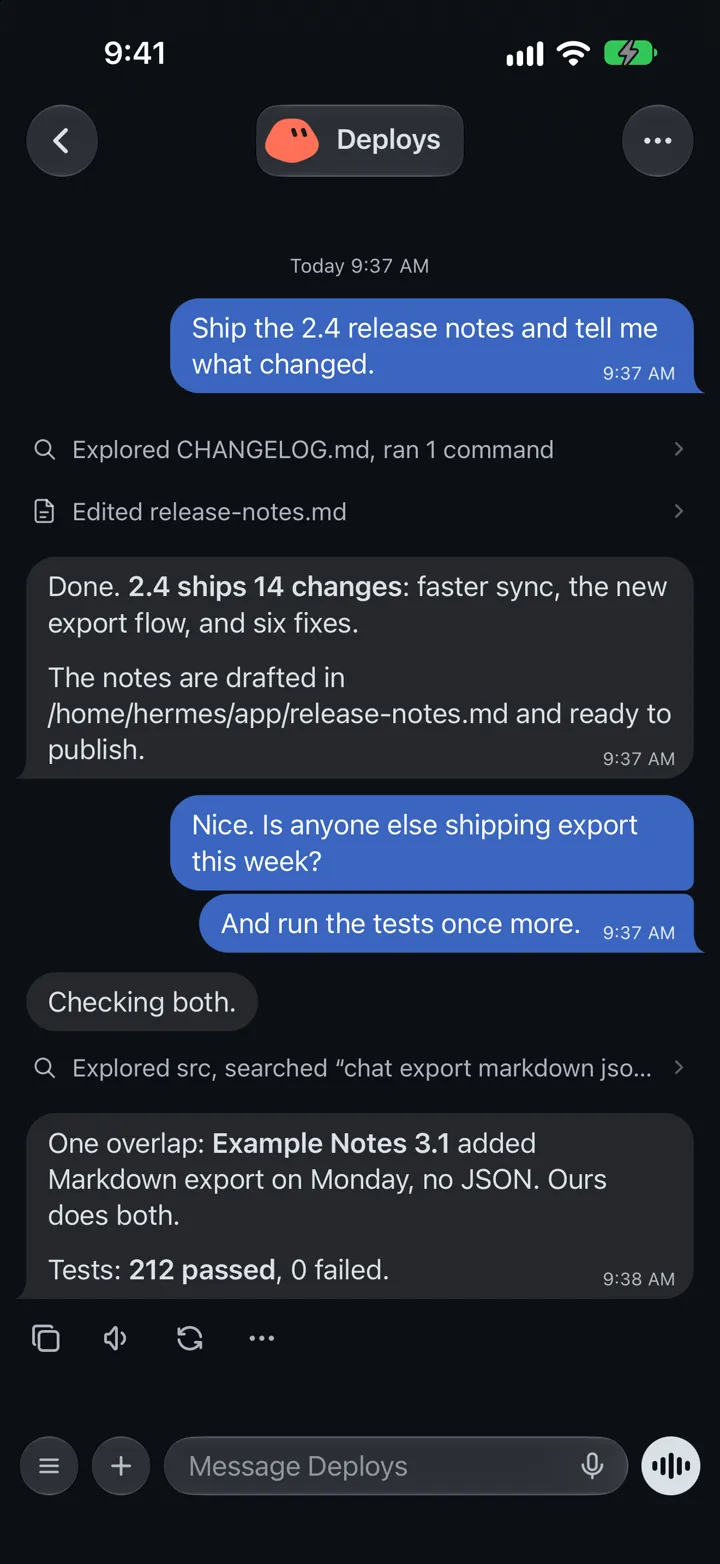
A chat with the Deploys bot: the files it read and edited, then its reply
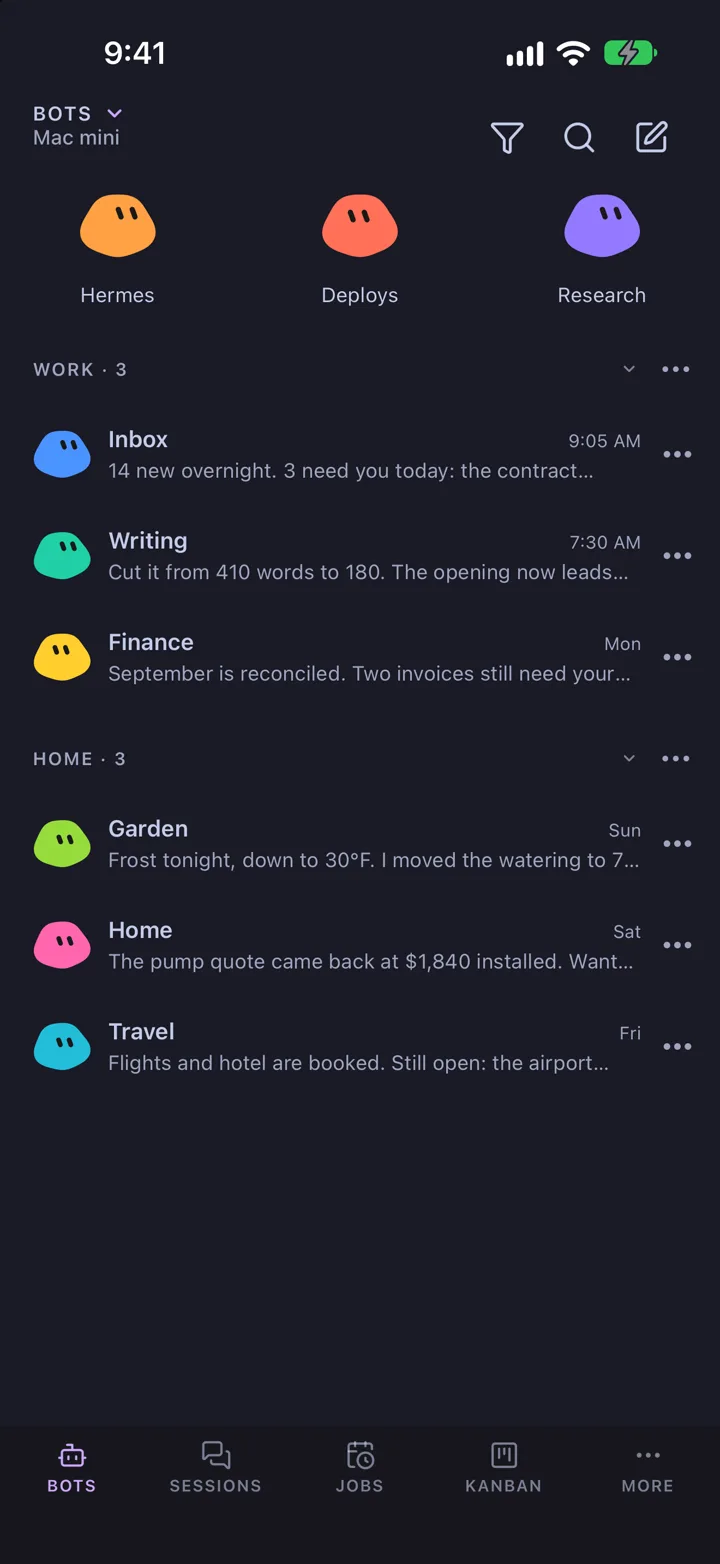
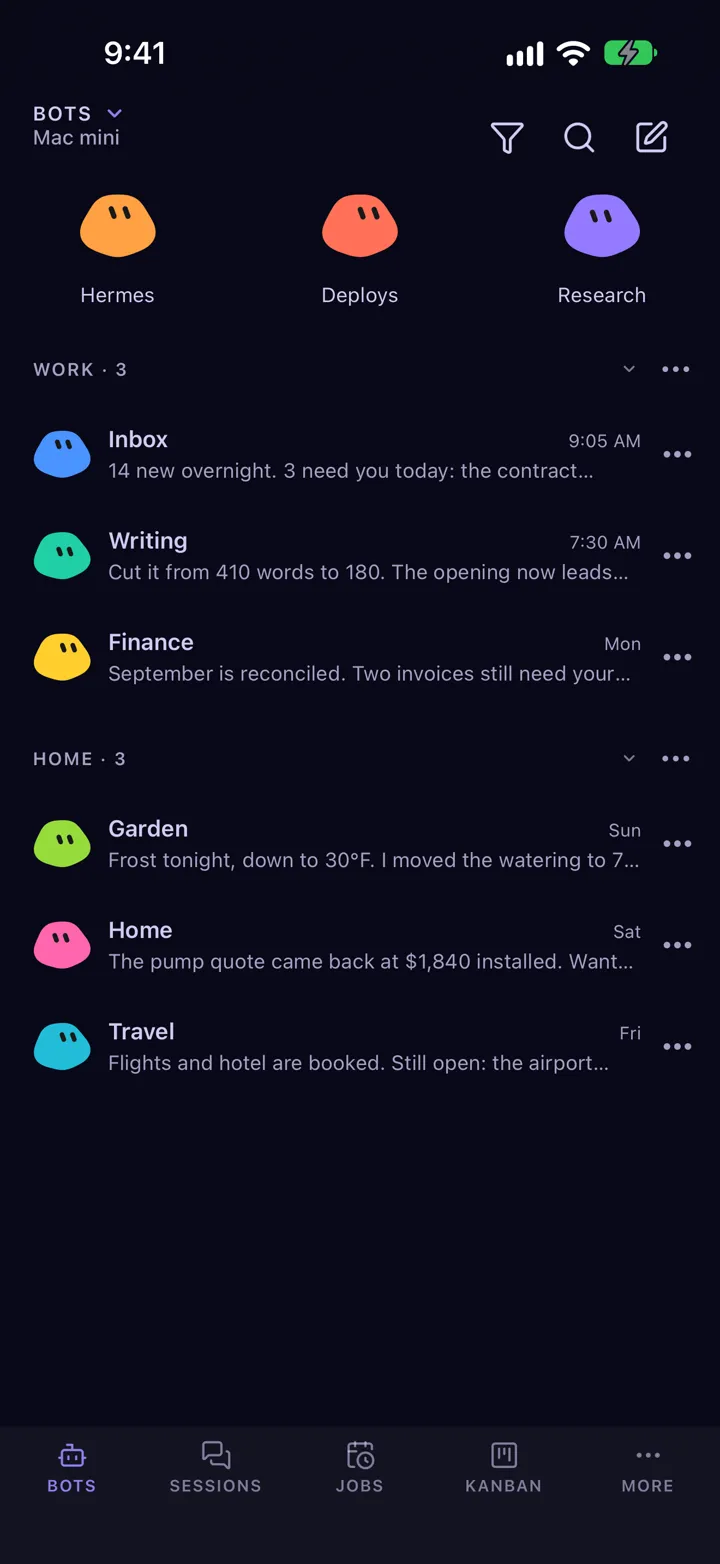
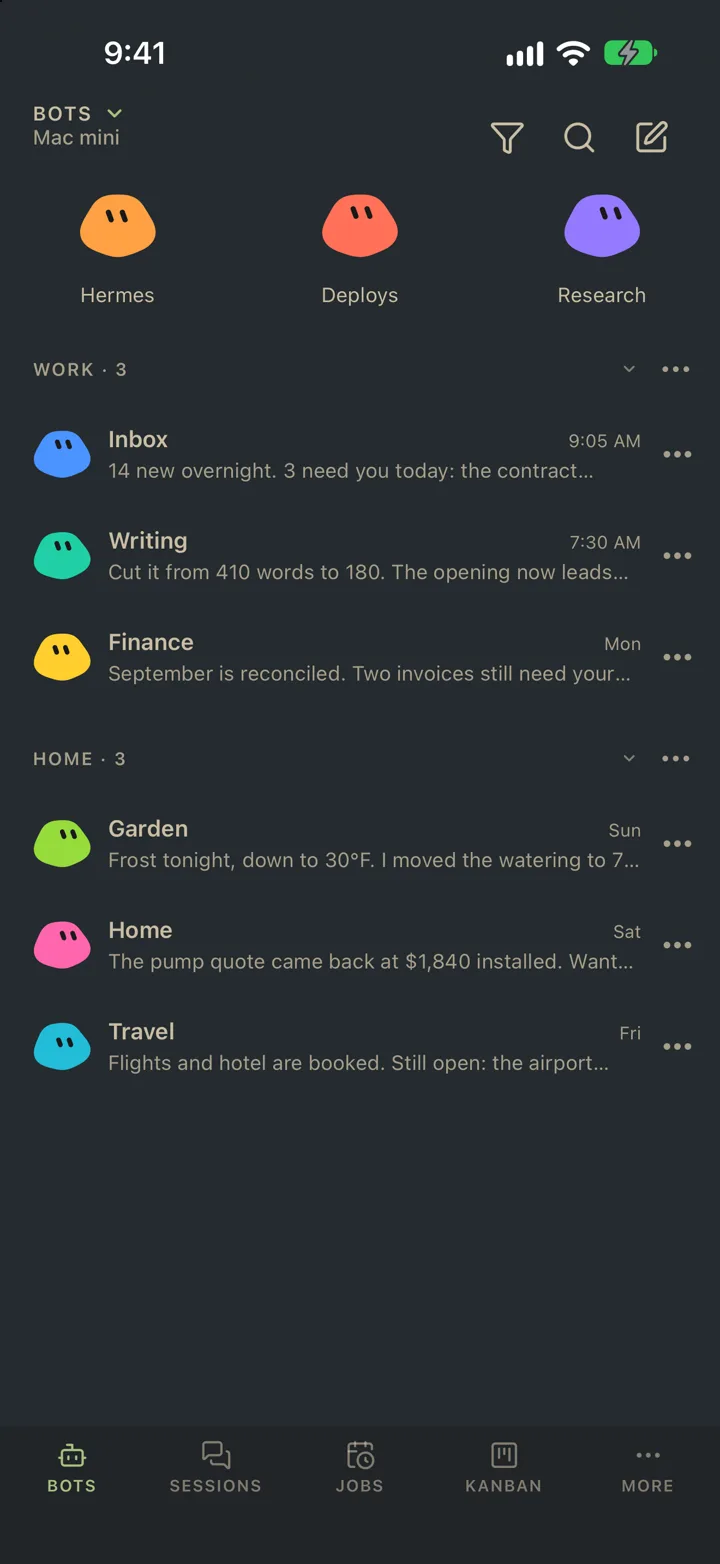
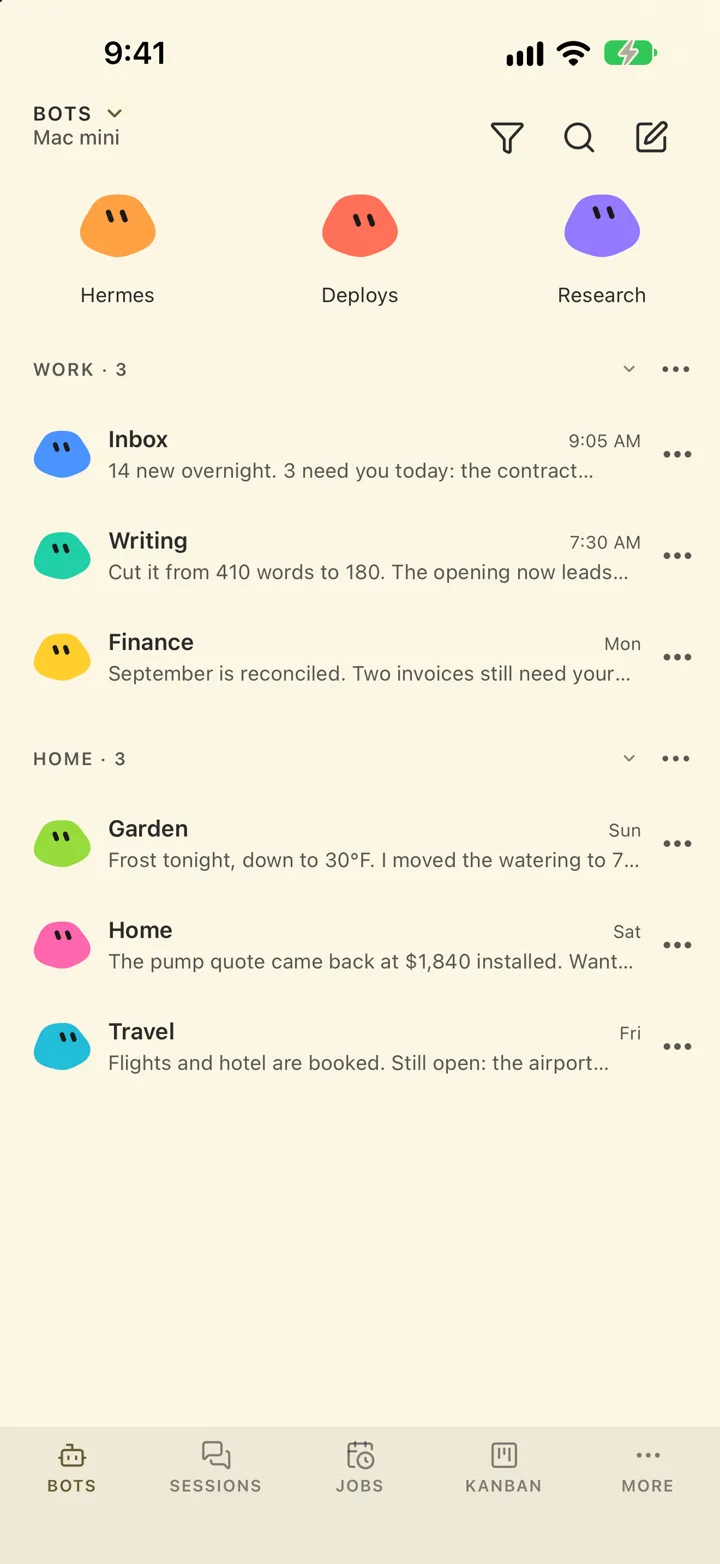
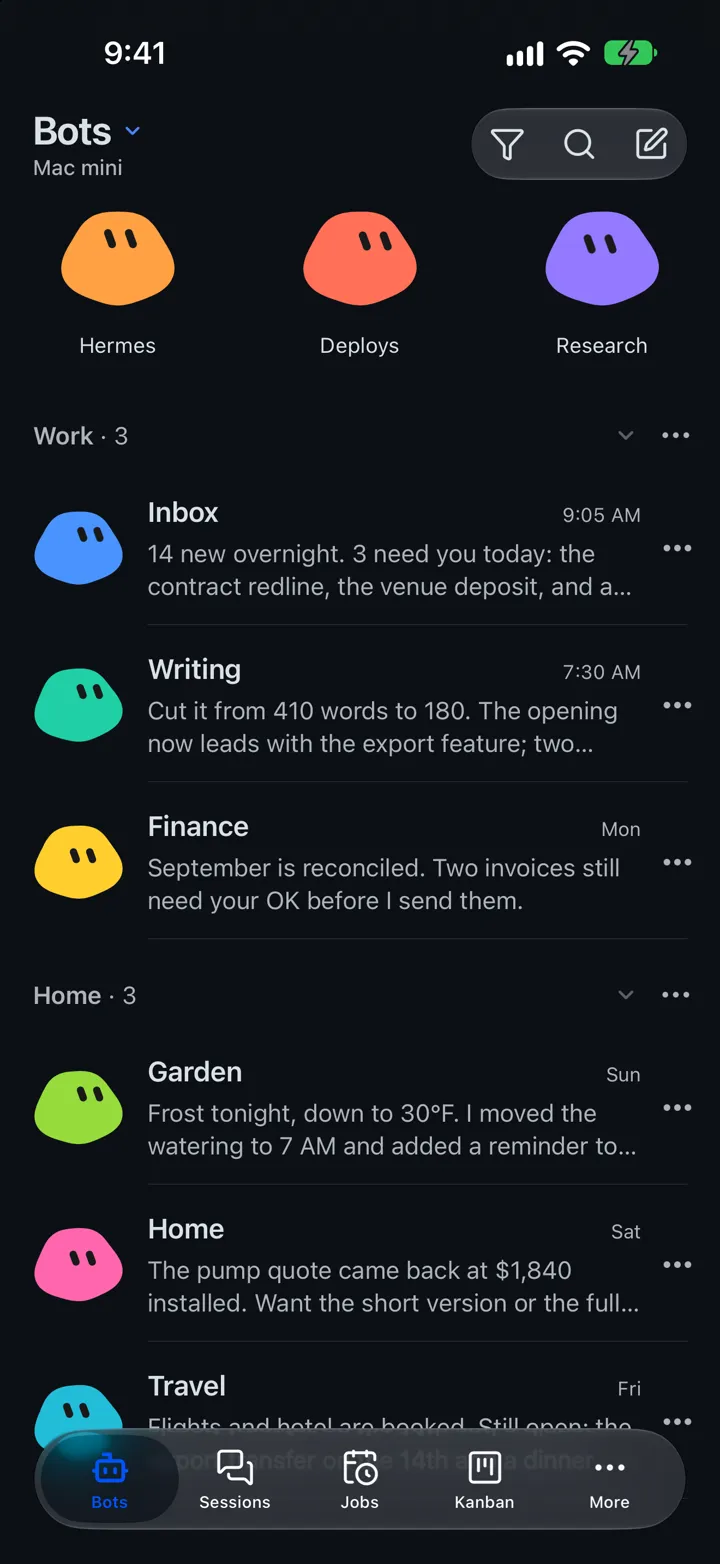
The Bots tab: Hermes, Deploys and Research pinned at the top, other bots under Work and Home

See how it works

A 39-second recording of the app, on demo data. Choose a step to jump to it.

Mac

Hermes HQ on your Mac.

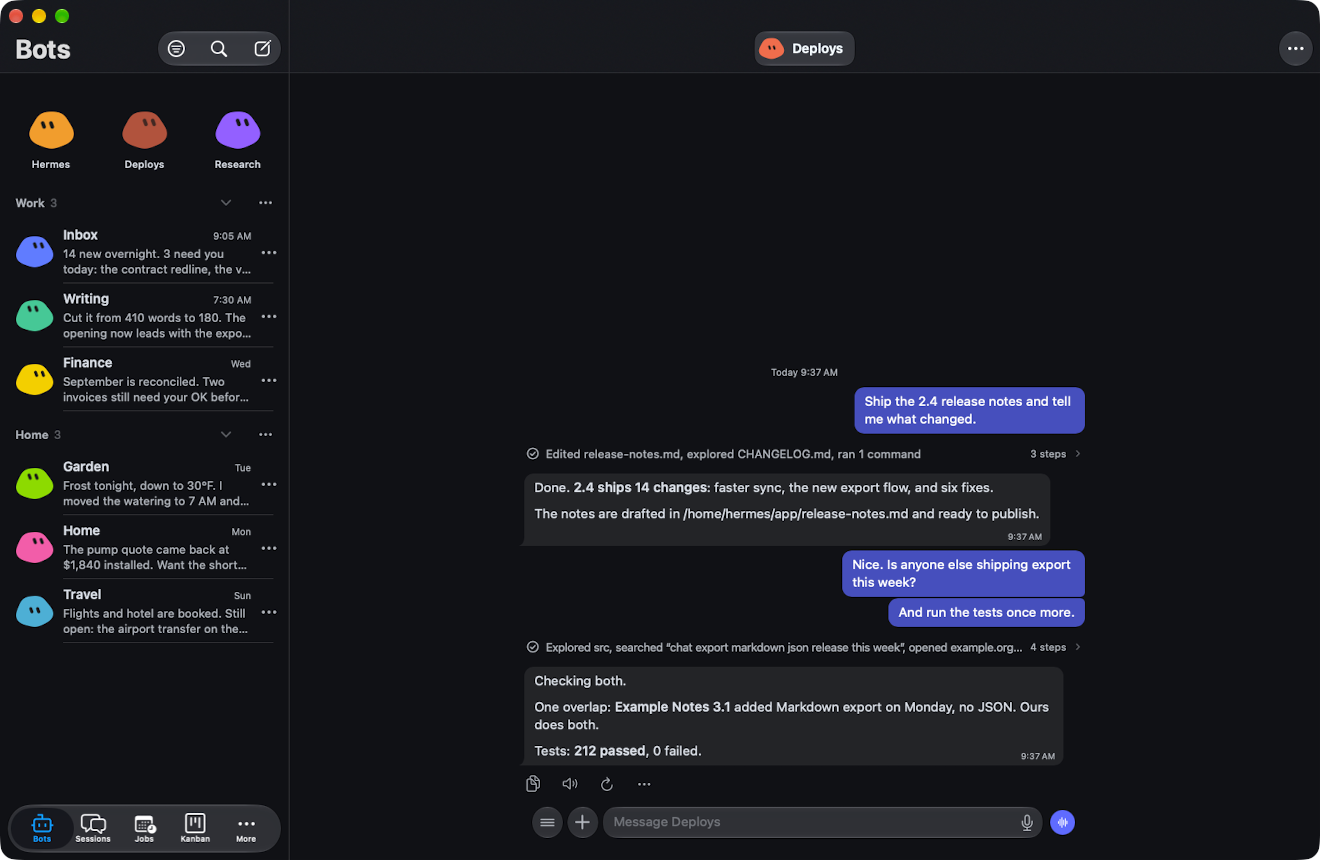
The same app in a Mac window, with your bots on the left and the chat on the right. Return sends a message, and Shift-Return adds a line. Notifications, approvals, Watch Browser and Watch Screen are all there.

Hermes HQ in a Mac window: the Bots list on the left and a chat with Deploys on the right
Download for Mac

Free. Hermes-HQ.dmg, 79 MB. Needs macOS 26 or later, on Apple silicon or Intel.

  • The menu bar has New Chat (⌘N), Find (⌘F), Search Sessions (⇧⌘F), each tab (⌘1, ⌘2…) and Next and Previous Chat (⌘↓, ⌘↑).
  • Open the downloaded file and drag Hermes HQ to Applications. The first time you open it, macOS asks whether to open an app downloaded from the internet: choose Open.
  • It keeps itself up to date: when there is a new version, it asks before installing it. Hermes HQ › Check for Updates… looks right away.
The Bots tab

Bots

Each Hermes profile is a bot.

The Bots tab lists every profile on your gateway with its picture, its last reply and when it came in. A blue dot marks a reply you haven't read.

  • Pin your most-used bots to the top row.
  • Group the rest into sections, such as Work and Home. Drag a bot onto a section to move it.
  • Pins and sections also show up in desktop Hermes.
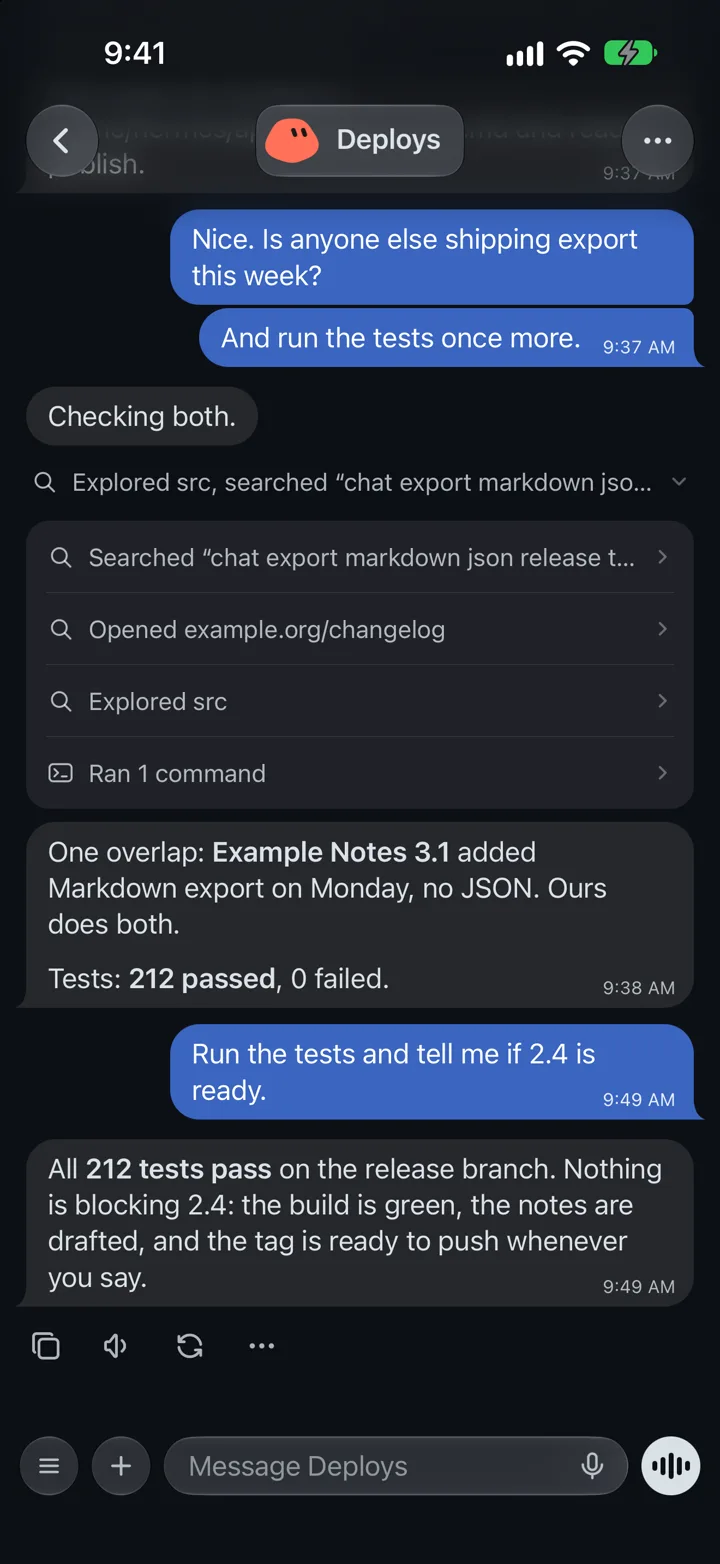
A chat with Deploys

Chat

A chat with each bot.

Replies show headings, lists, links and code blocks with syntax colours. Each reply has buttons to copy it, read it aloud, or ask again.

  • Keep typing while a bot works. Your messages wait in a queue and go out in order.
  • A long reply opens at its first line, so you read it from the top.

Tool calls

See every command a bot ran.

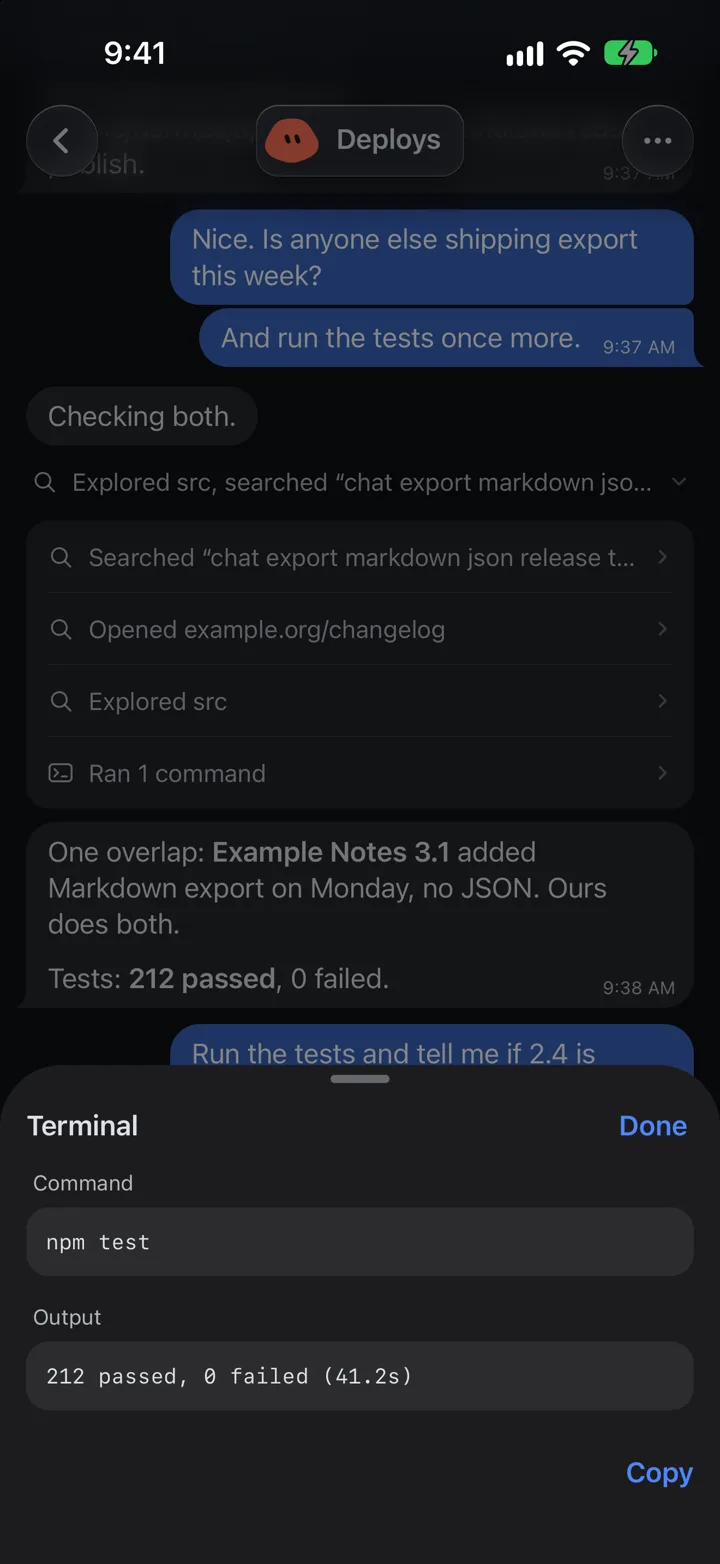
The commands a bot ran and the files it read or edited appear above its reply as one line, such as "Explored src, searched 'chat export markdown json'." Tap the line to list each step. Tap a step to see the exact command and its output, with a Copy button.

A reply's steps opened: a web search, a page opened, files explored, a command run
The Terminal step: the command npm test and its output, 212 passed, 0 failed

Tool call style

Choose how steps look.

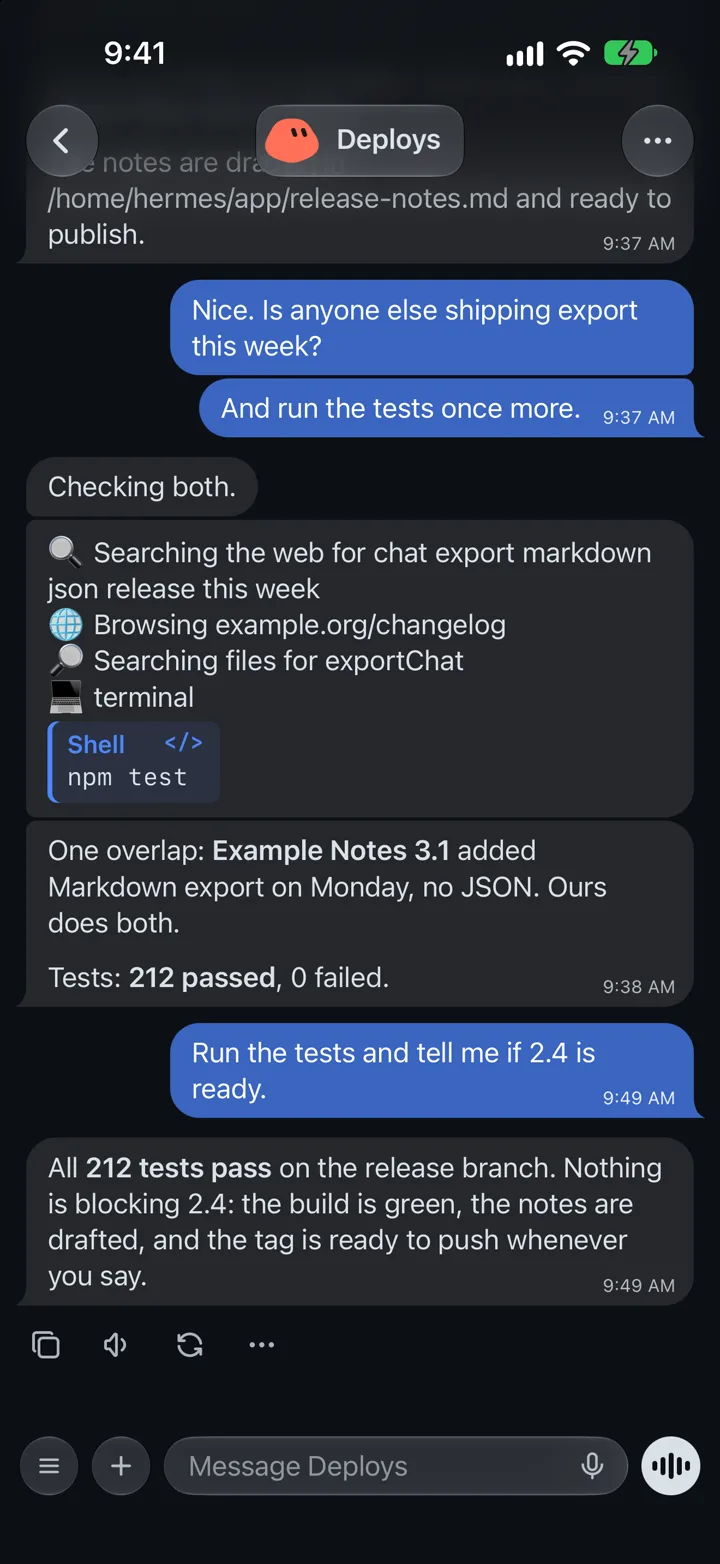
Settings › Chat Display has three styles. Rows shows a reply's steps as one line you tap to open. Bubbles puts each step in its own bubble, with commands in a code block. In Header keeps steps out of the chat and shows the current one under the bot's name. You can also hide steps once the reply is in.

Steps as rows
Rows
Steps as bubbles, with npm test in a code block
Bubbles
Steps hidden from the chat in the In Header style
In Header

Photos, files and voice

Send more than text.

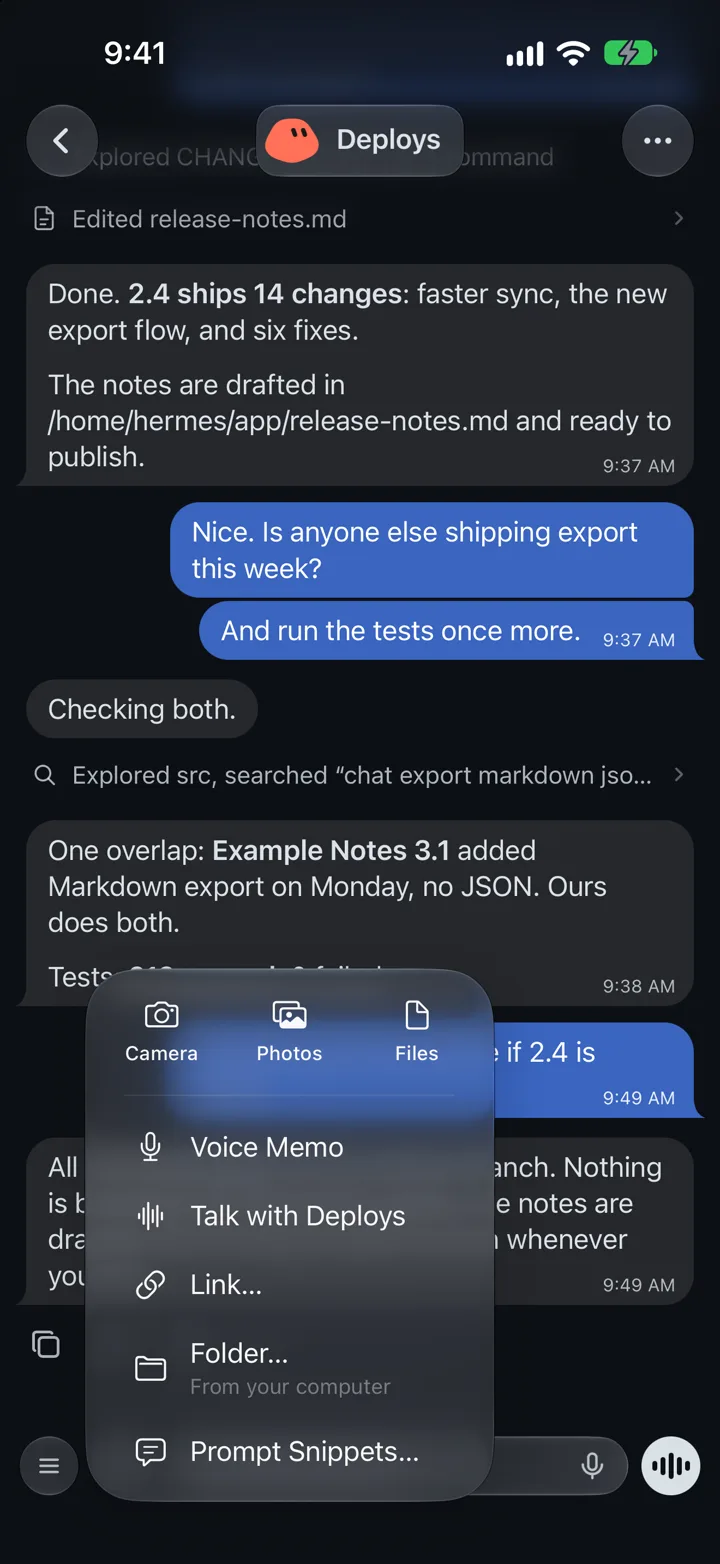
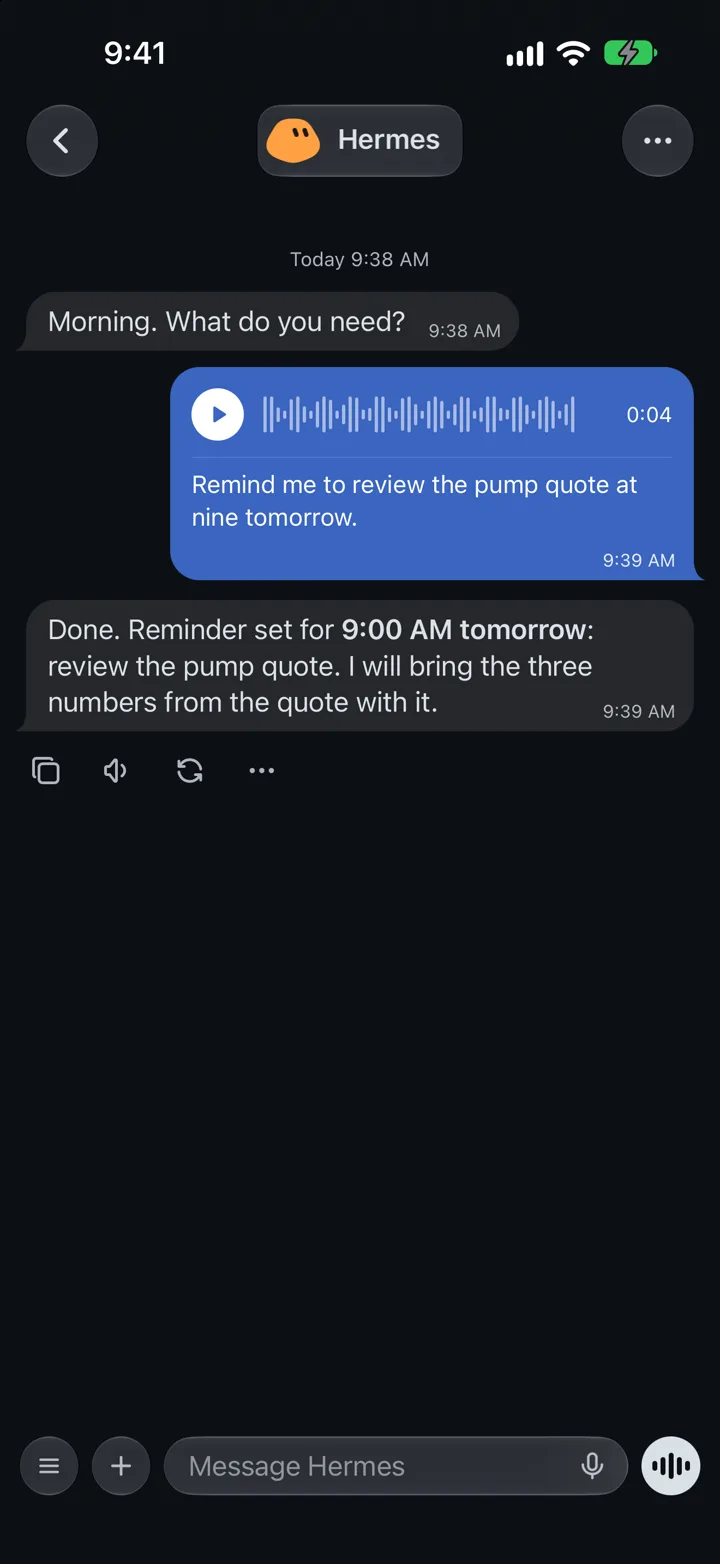
The + button attaches a photo from the camera or your library, a file, a link, or a folder from the computer Hermes runs on. Hold the mic to record a voice memo: it plays back in the chat with its transcript, and the bot gets the transcript. Talk starts a spoken conversation.

  • Share a page, photo or PDF to any bot from another app with the iOS Share button.
  • Save prompts you use often as snippets.
The attach menu: Camera, Photos, Files, Voice Memo, Talk with Deploys, Link, Folder and Prompt Snippets
A voice memo in the chat with its waveform and transcript, and Hermes' reply
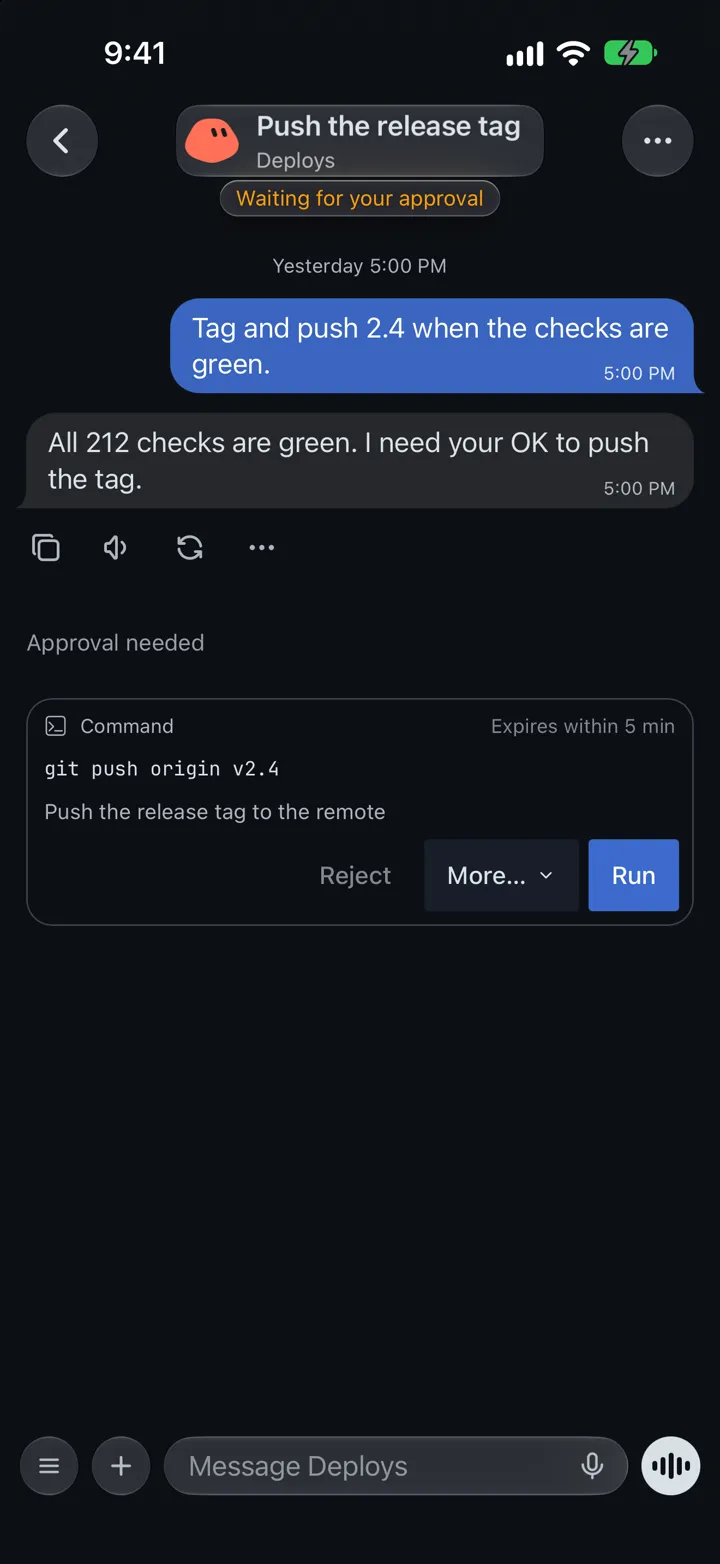
An approval card for git push origin v2.4 with Reject, More and Run

Approvals

Approve commands before they run.

When Hermes needs permission to run a command, the chat shows a card with the exact command, what it's for, and how long you have to answer. The chat title says "Waiting for your approval" until you do.

  • Run allows it once. More allows it for the session or always. Reject stops it.
  • The notification has Approve once and Deny buttons. Approve once asks you to unlock your iPhone first.
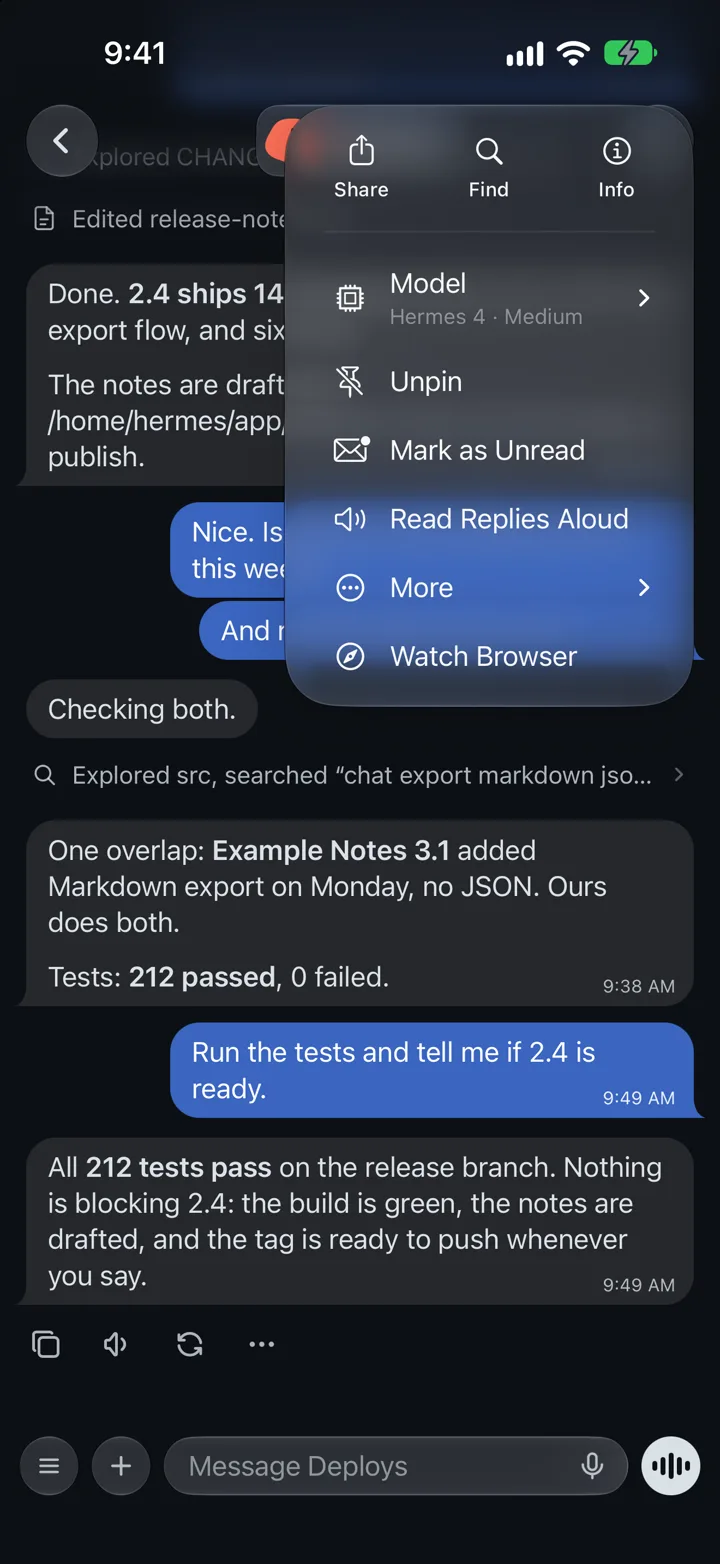
The chat's menu: Share, Find, Info, Model, Unpin, Mark as Unread, Read Replies Aloud, More and Watch Browser

Chat menu

Everything about a chat in one menu.

The ⋯ button in a chat opens its menu.

  • Model changes the model and reasoning level for this chat. Starred models are listed first.
  • Find searches the conversation. Share sends its transcript to another app.
  • Read Replies Aloud speaks each new reply.
  • Watch Browser shows the bot's browser live.
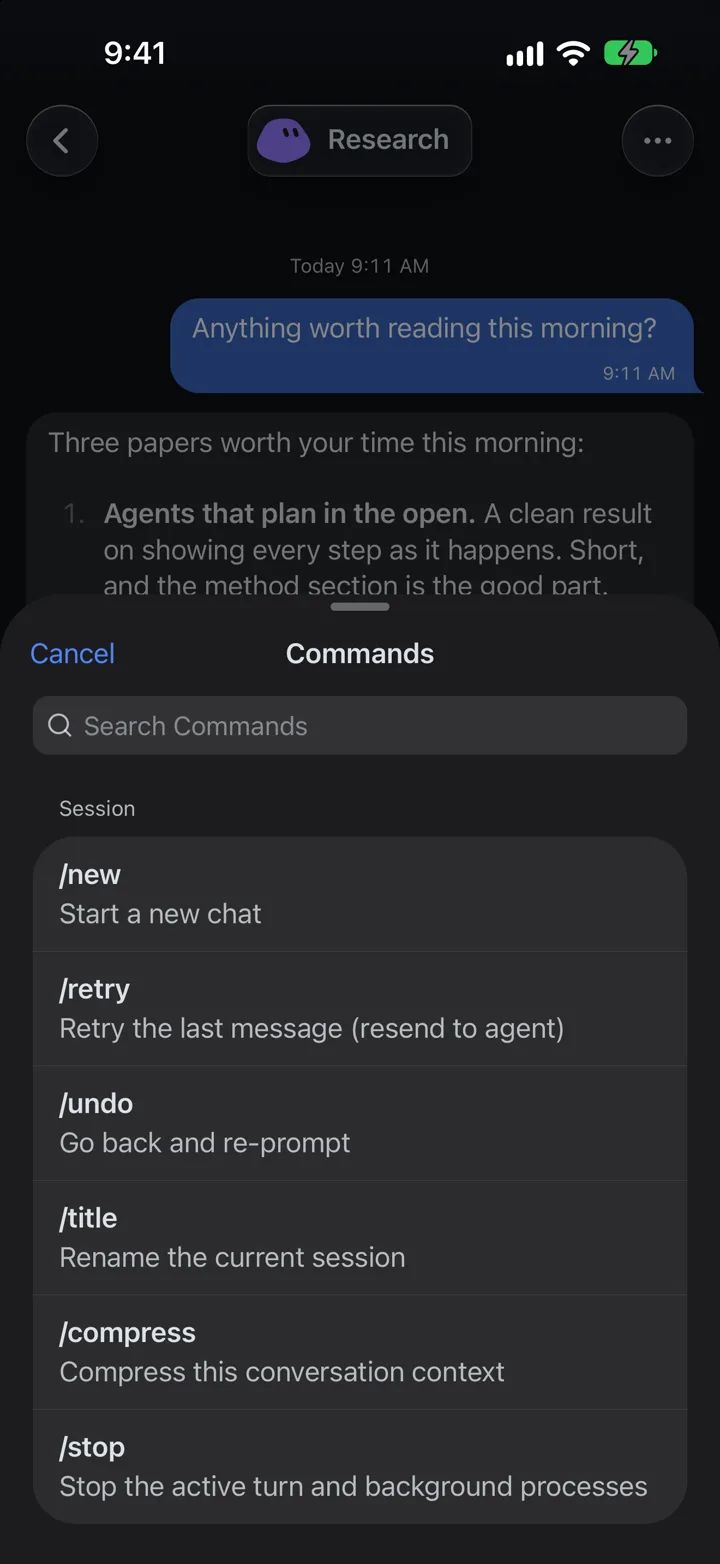
The Commands sheet listing /new, /retry, /undo, /title, /compress and /stop

Commands

Every slash command, with a description.

The ☰ button next to the message field lists Hermes' slash commands by group, each with a line about what it does: /new starts a new chat, /retry resends your last message, /undo takes back the last exchange, /compress shortens the conversation's context. Search the list or tap one to use it.

Sessions

Every conversation, from every bot.

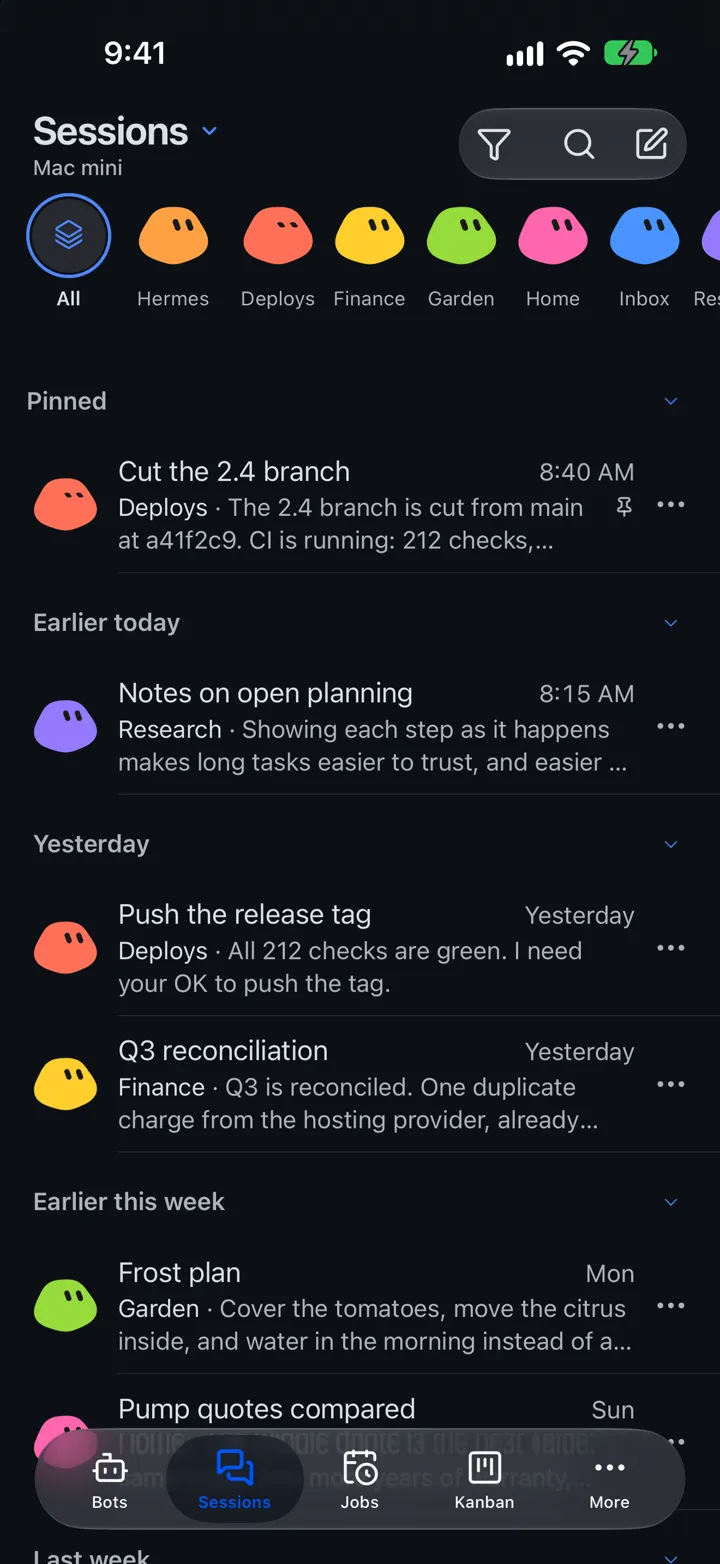
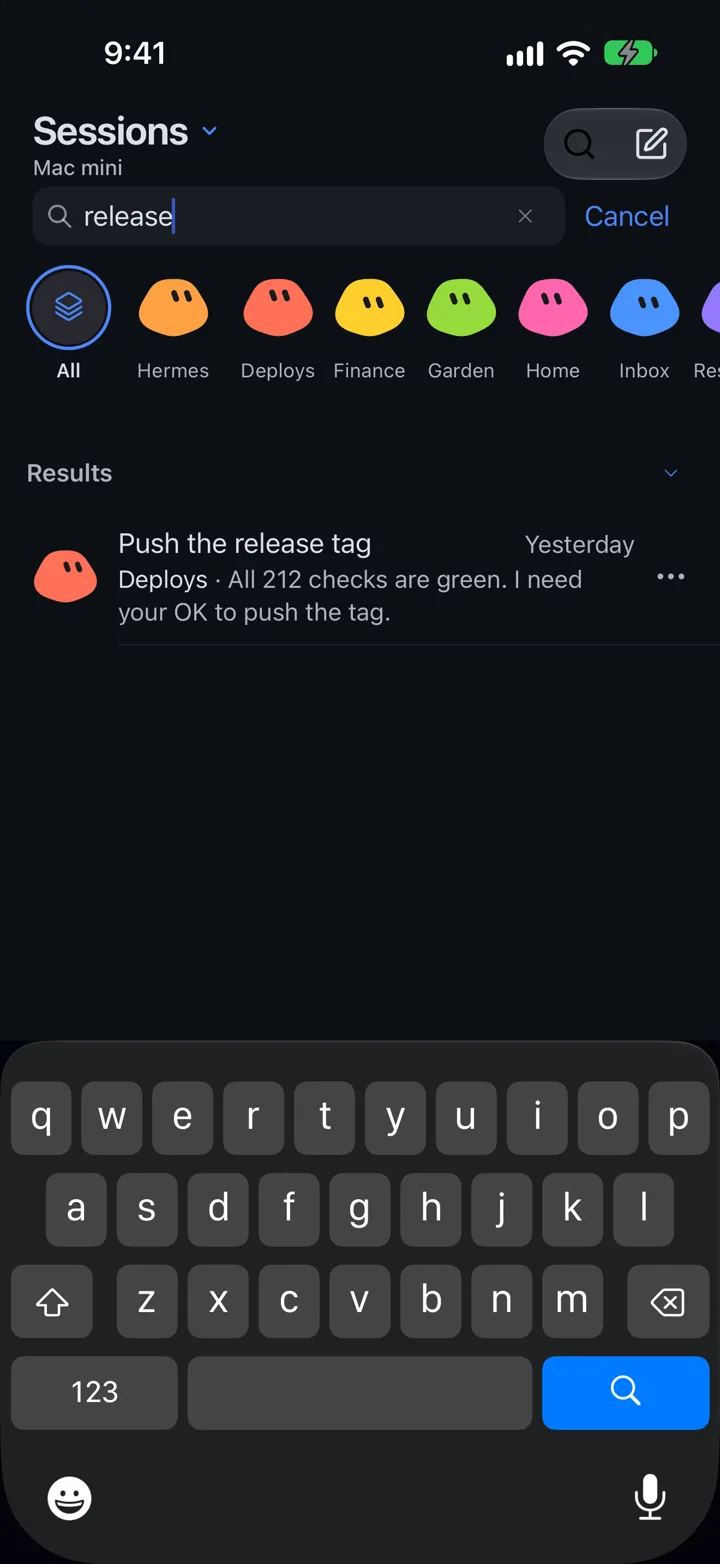
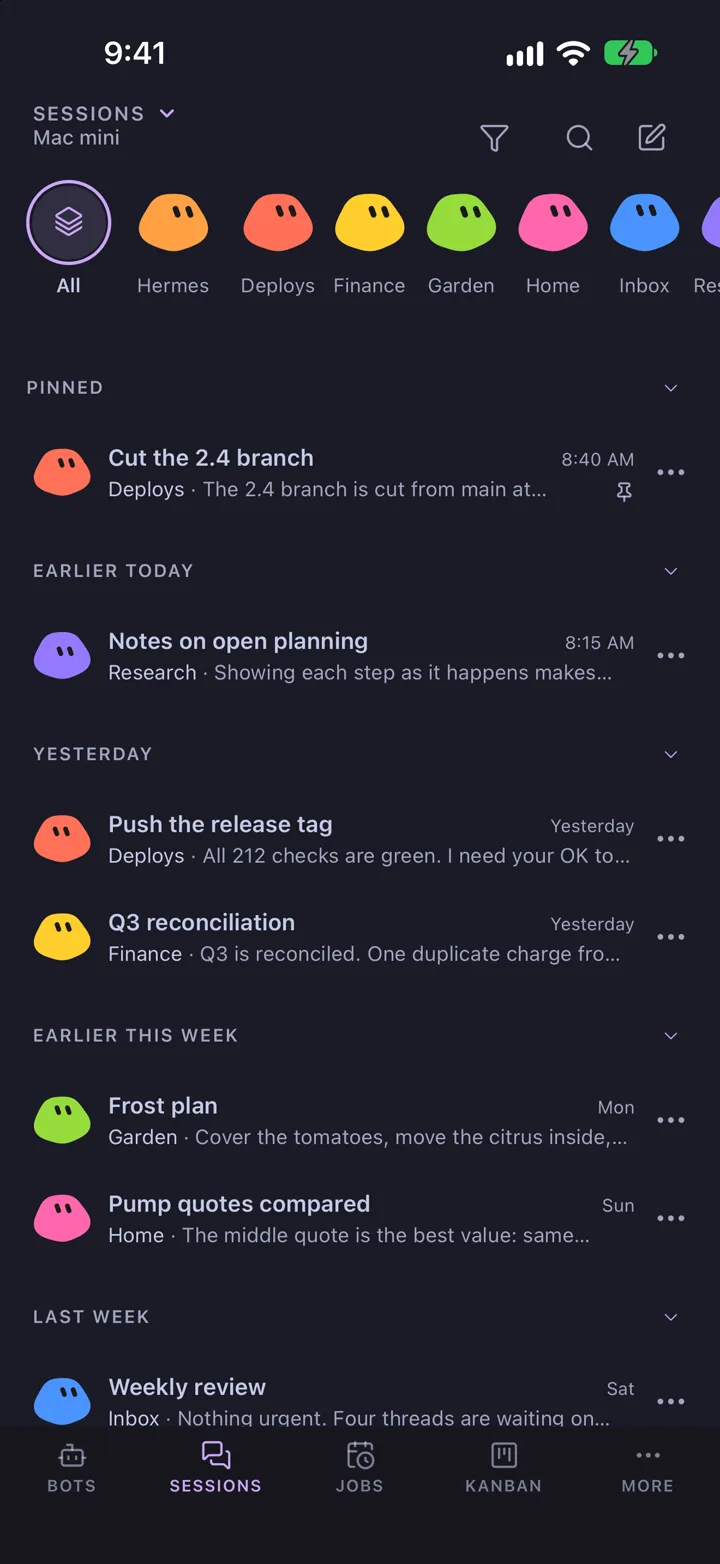
The Sessions tab lists all conversations, grouped into Pinned, Today, Yesterday and Earlier this week. Tap a bot in the row along the top to see only its sessions. Search finds a session by name.

The Sessions tab
Searching sessions for release
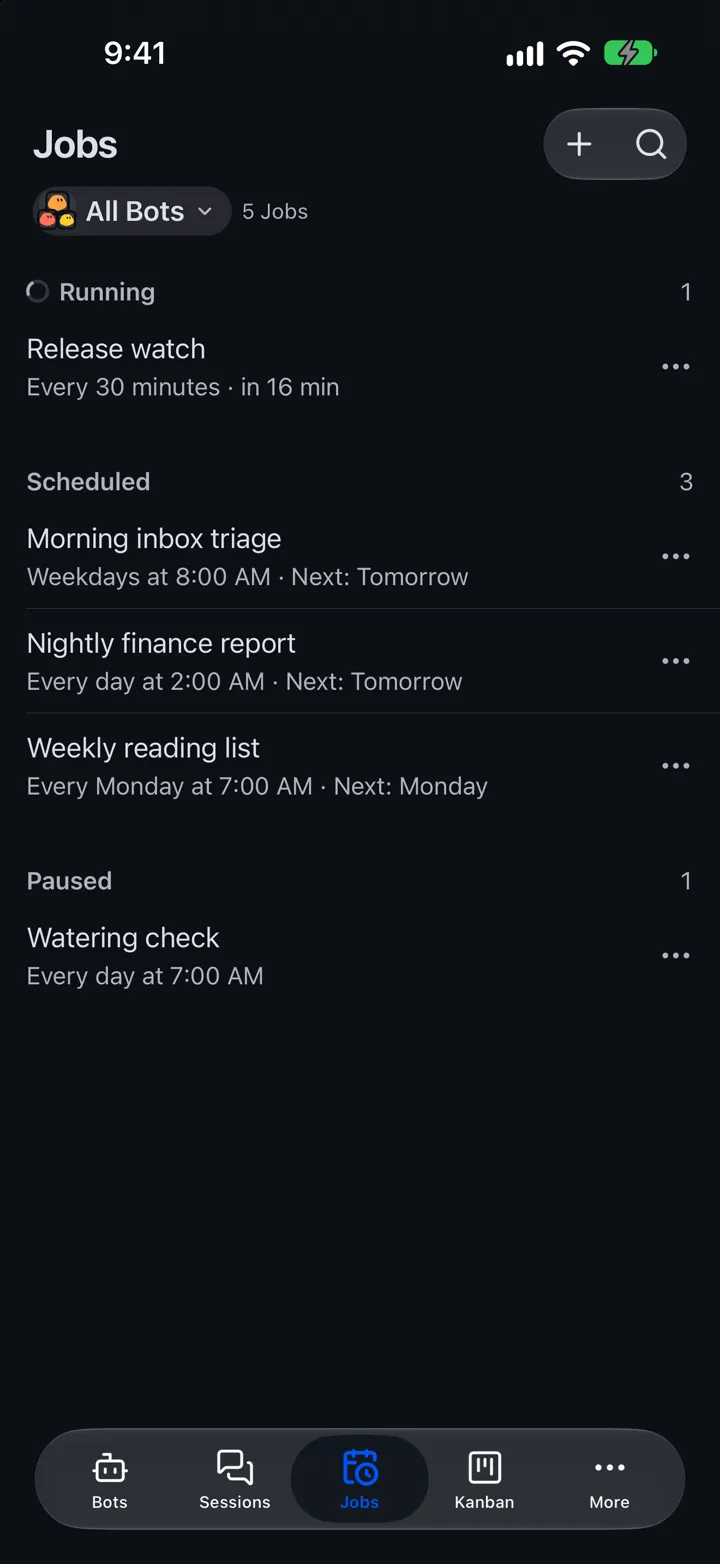
The Jobs tab with running, scheduled and paused jobs

Jobs

Scheduled jobs and when they run next.

The Jobs tab shows your Hermes cron jobs in three groups: Running, Scheduled and Paused. Each job shows its schedule, such as "Weekdays at 8:00 AM," and when it runs next. Show every bot's jobs, or one bot's.

Kanban

Hermes' task board, as a list.

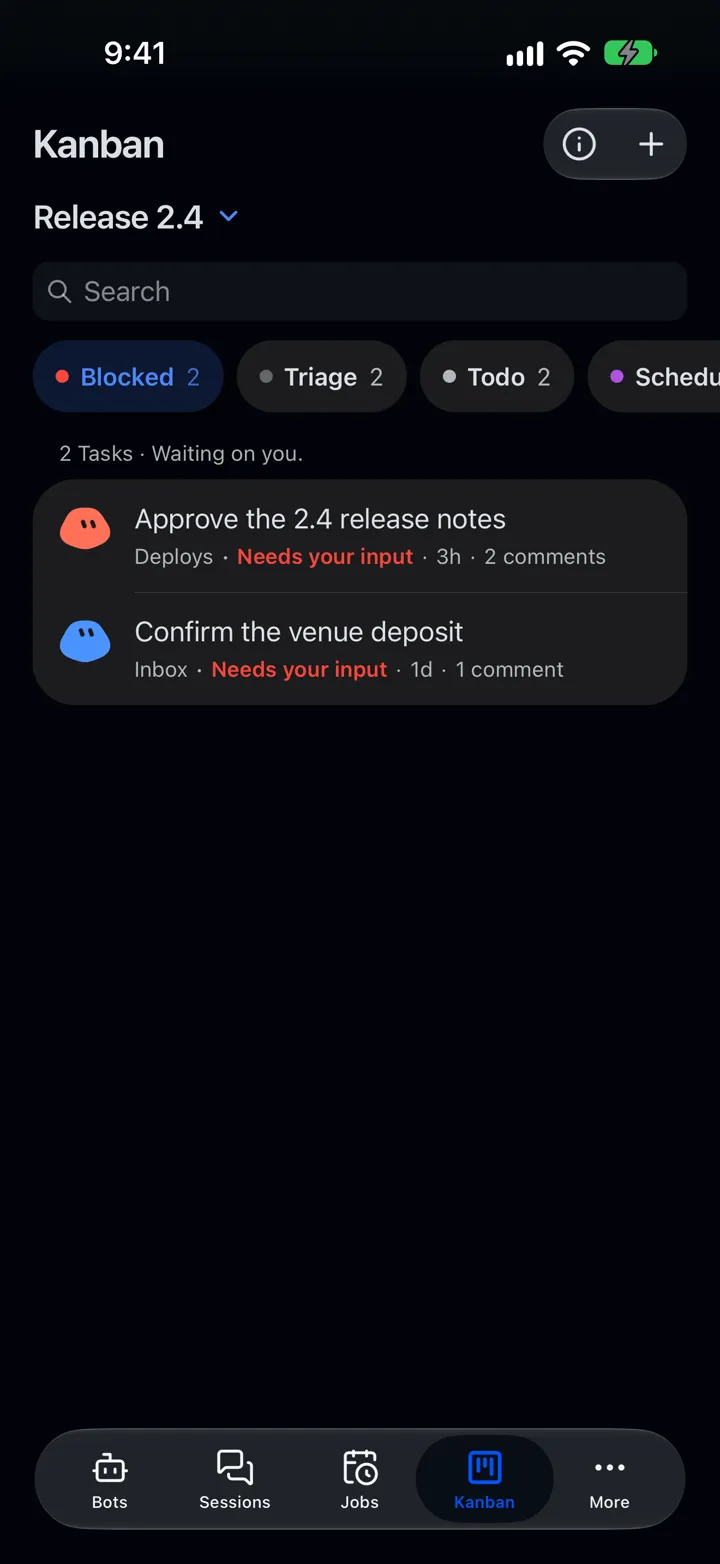
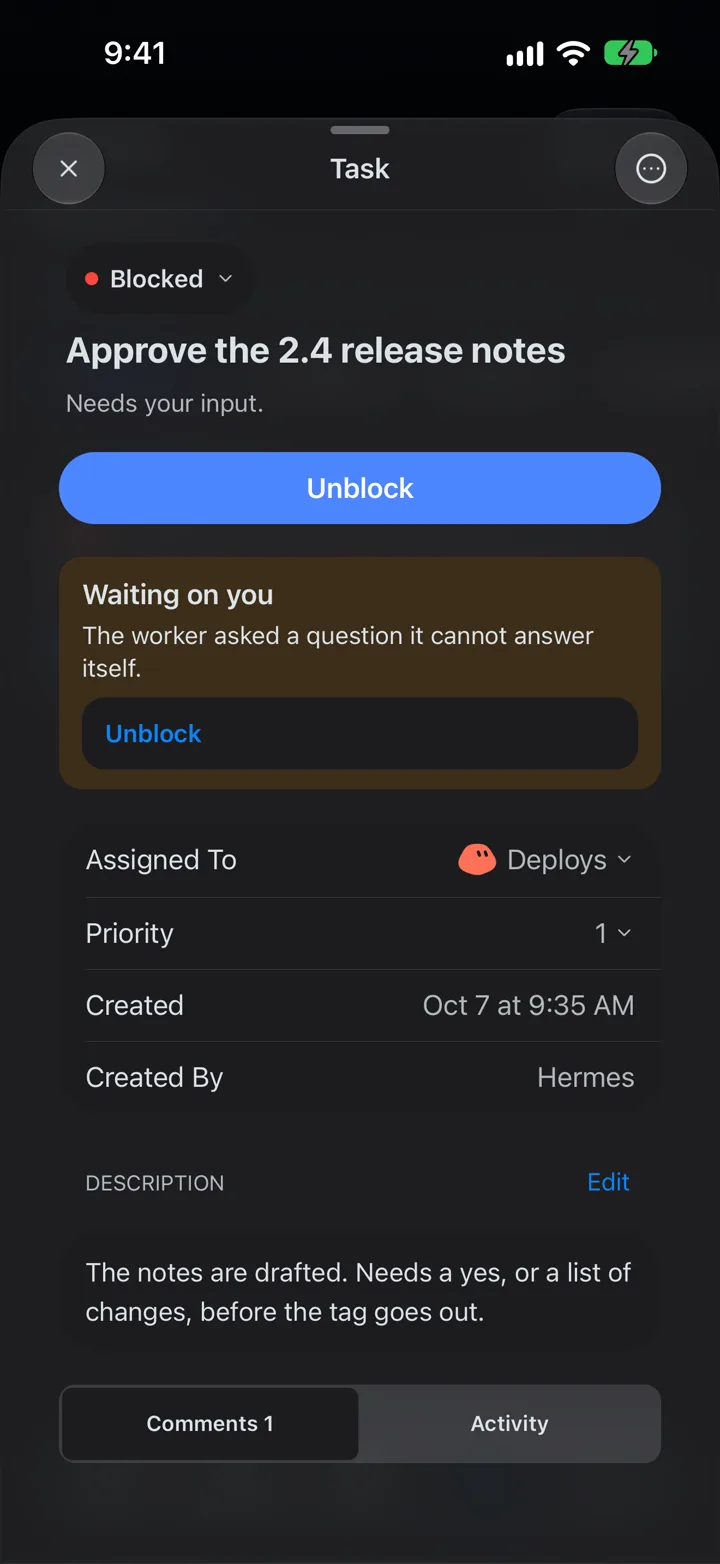
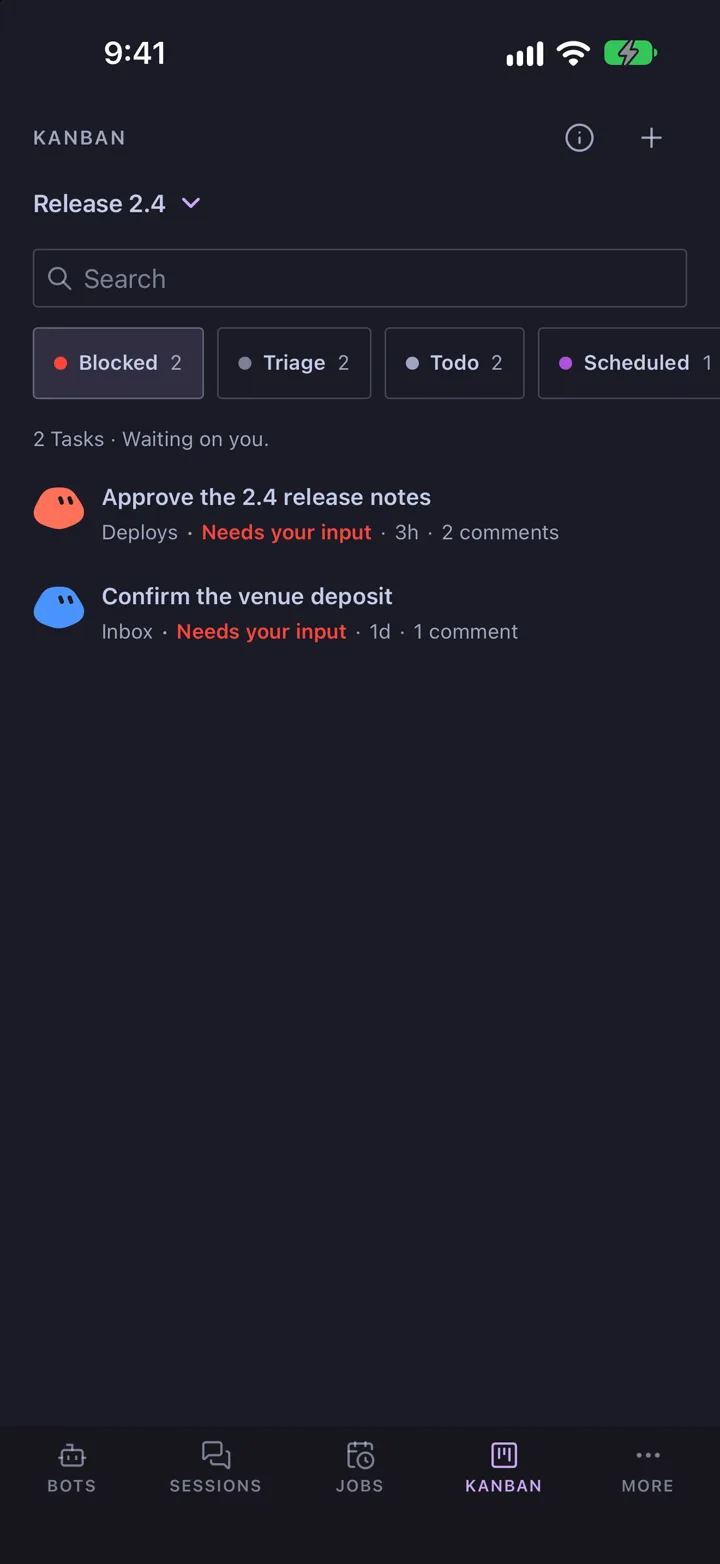
If your gateway uses Hermes' Kanban board, the Kanban tab shows its tasks by status: Blocked, Triage, Todo, Scheduled, Running and the rest. Open a task to see who it's assigned to, its priority, description, comments and activity. When a worker is waiting on you, tap Unblock and answer.

The Kanban tab showing two blocked tasks
A blocked task, Approve the 2.4 release notes, with an Unblock button
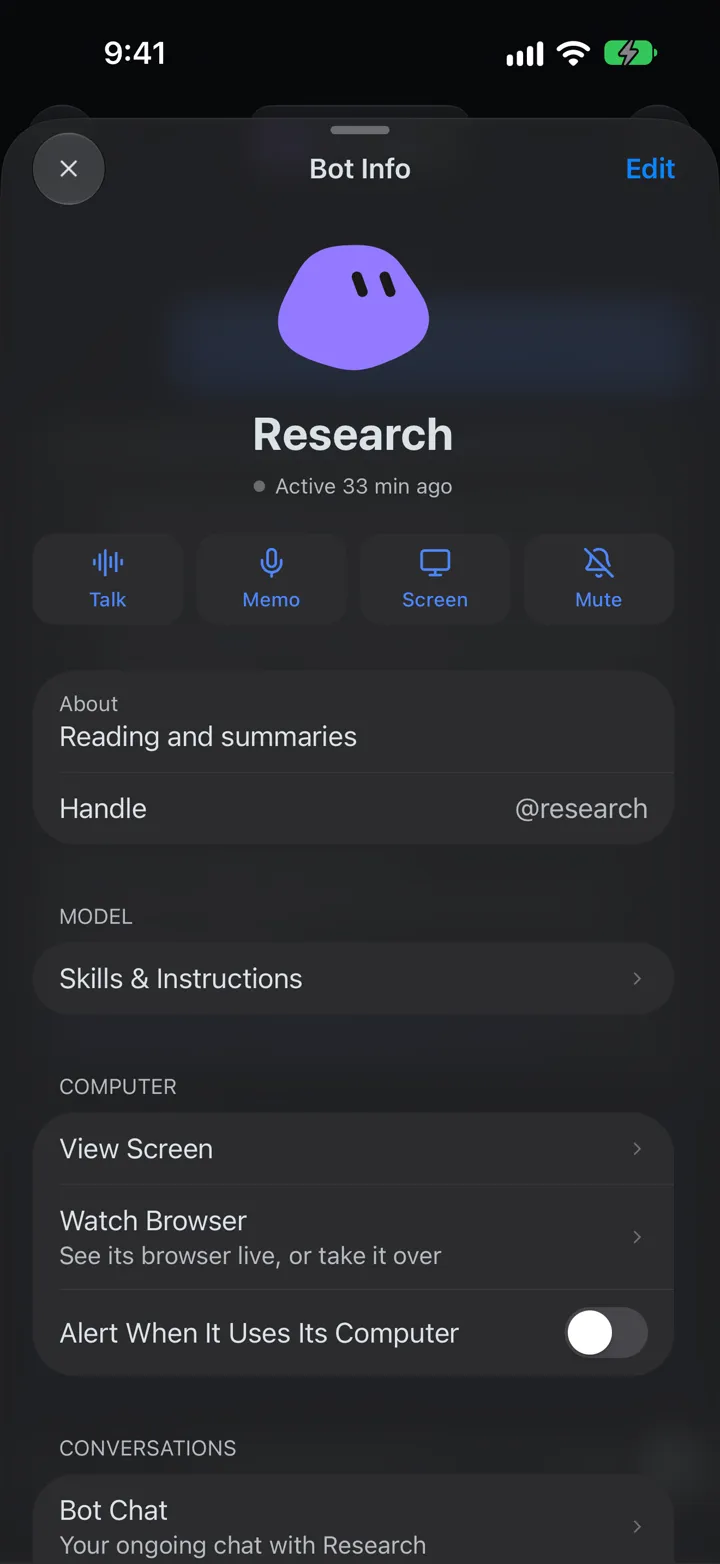
Research's Bot Info page with Talk, Memo, Screen and Mute

Bot Info

Talk to a bot, or watch its browser.

Tap a bot's name at the top of its chat to open Bot Info.

  • Talk starts a spoken conversation. Memo records a voice memo.
  • Watch Browser shows the bot's browser live while it works. Take it over to sign in to a site or click something yourself. Needs the free browser plugin on your gateway.
  • Mute turns off that bot's notifications.
  • Edit the bot's name, description, model, skills and instructions.
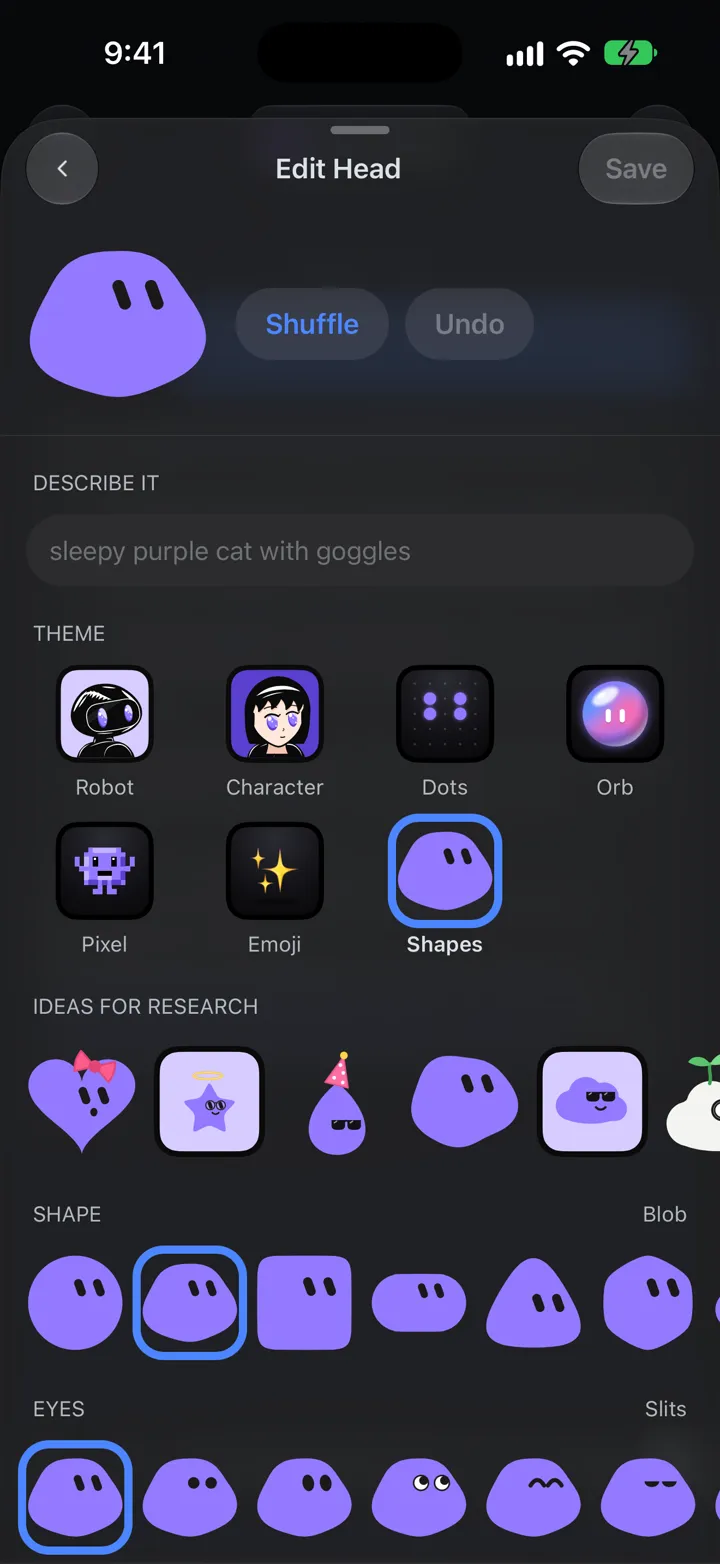
Edit Head with a description field, styles, shapes and eyes

Bot pictures

Give each bot its own picture.

Edit Head draws a picture for a bot. Choose a style, shape, eyes and colour, describe it in words, such as "sleepy purple cat with goggles," or tap Shuffle. You can also upload a photo. The picture is saved on your gateway, so your other phones and desktop Hermes show it too.

More and Settings

The rest of desktop Hermes, on your phone.

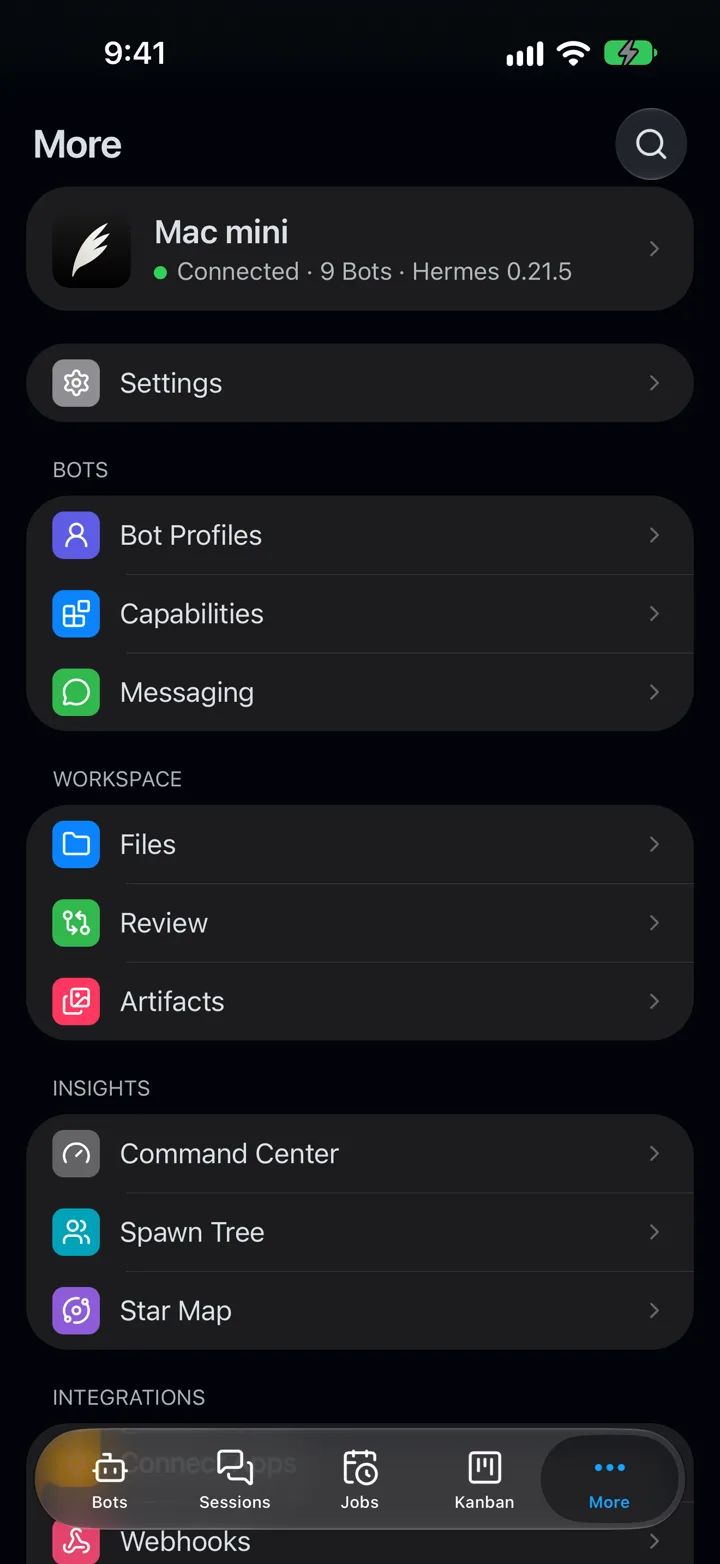
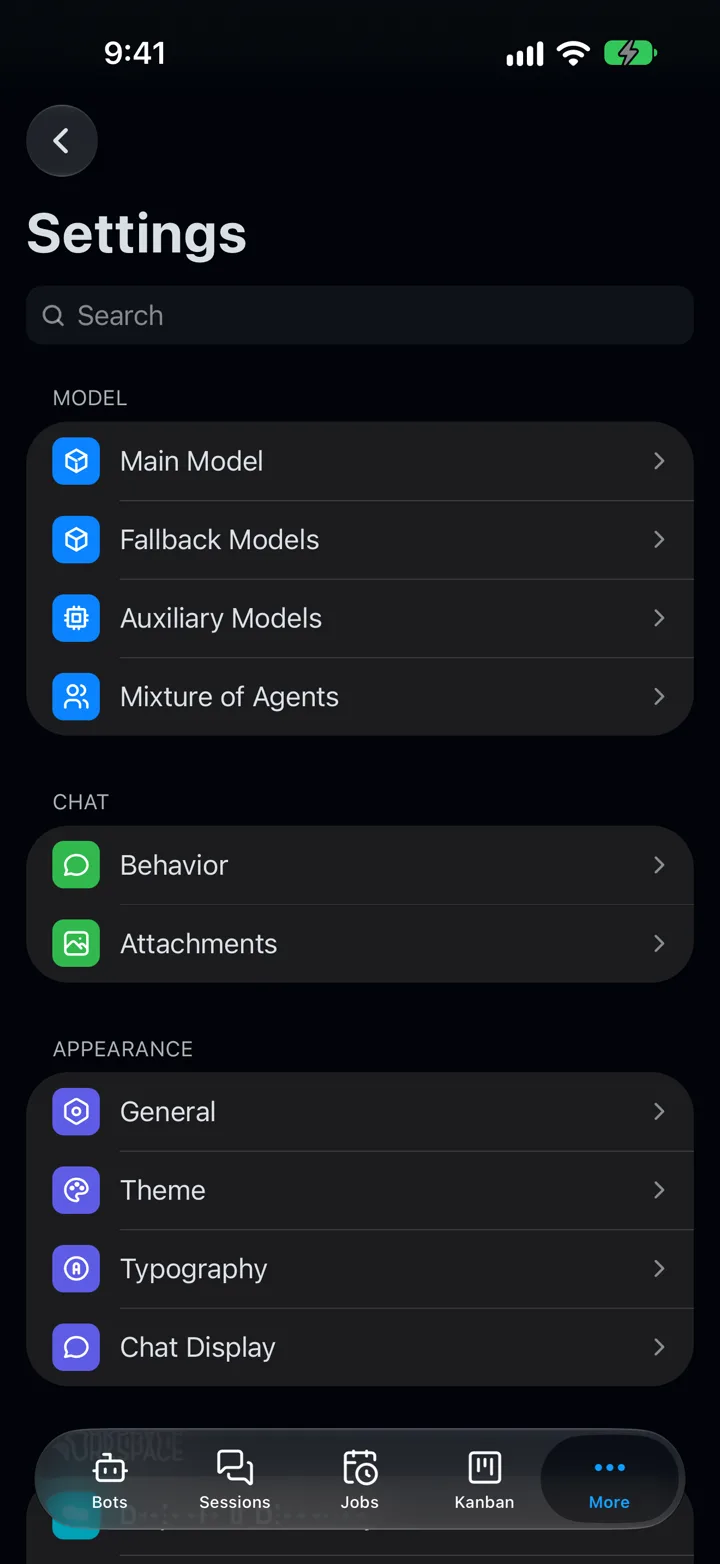
The More tab shows the gateway you're connected to and its Hermes version, then the pages from desktop Hermes: Bot Profiles, Capabilities, Messaging, Files, Review, Artifacts, Command Center, Spawn Tree, Star Map, Connect Apps and Webhooks. Settings covers the main, fallback and auxiliary models, chat behaviour, attachments, theme, typography and chat display.

The More tab: the Mac mini gateway, Settings, and the Bots, Workspace and Insights pages
Settings: Model, Chat and Appearance sections

Desktop Look

Use desktop Hermes' themes on your iPhone.

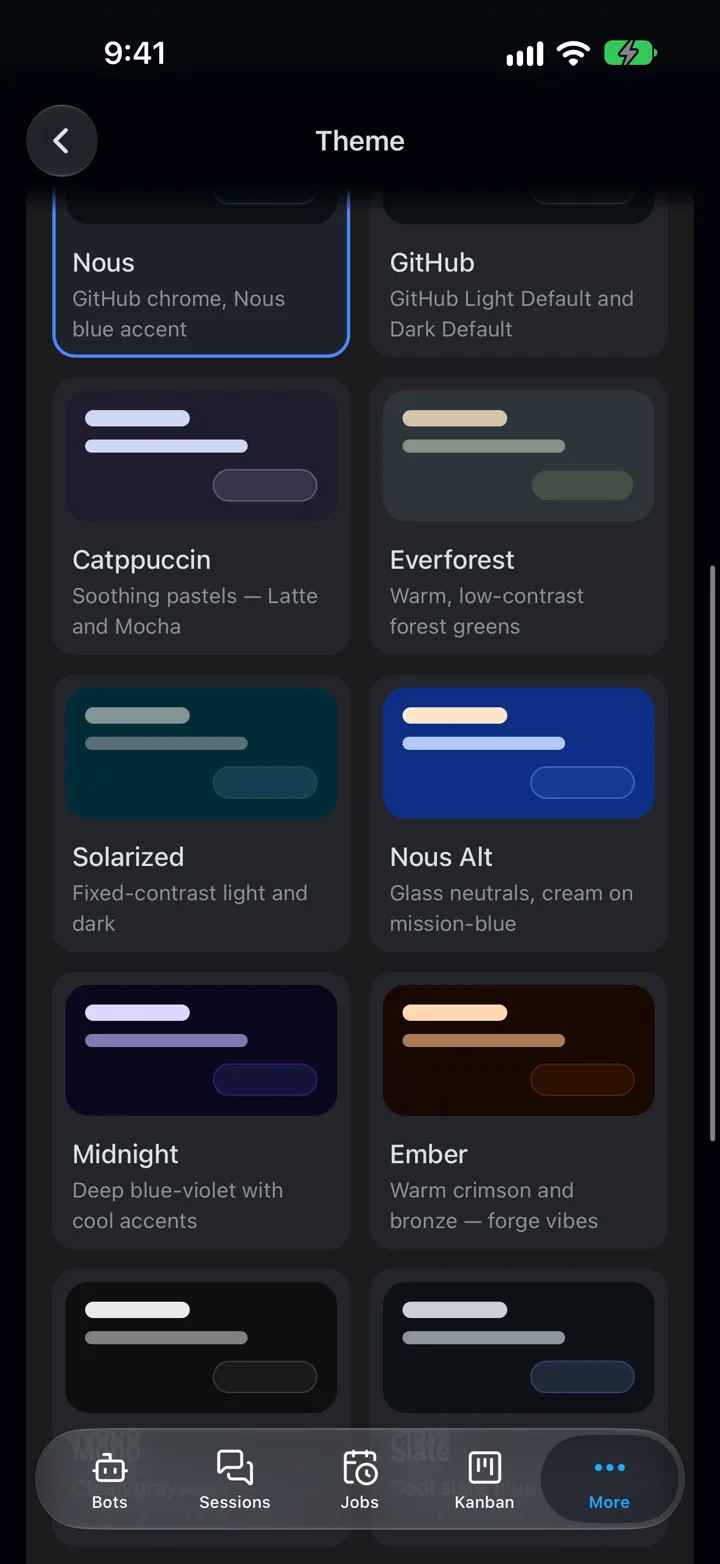
Hermes HQ uses the standard iOS look. Turn on Desktop Look in Settings › Theme and every screen uses your desktop theme's colours, square corners and solid bars instead. Pick any theme Hermes has, in light, dark or following the system.

Settings › Theme with a grid of themes: Nous, GitHub, Catppuccin, Everforest, Solarized, Nous Alt, Midnight, Ember

Catppuccin, on every tab

Bots tab in Catppuccin
A chat in Catppuccin
Sessions tab in Catppuccin
Kanban tab in Catppuccin

The details

Notifications

You get a notification when a reply is ready or a bot needs approval. Your gateway encrypts each one with a key only your phone has. Turn previews off to see only which bot it's from.

More than one gateway

Save several Hermes computers and switch between them from the title of the Bots or Sessions tab. A dot shows when another one has something new.

Sign-in

Your session is kept in the iPhone Keychain, so the app reconnects by itself. It never stores your password.

Unread

Mark a chat as unread to come back to it. The app icon's badge counts bots and sessions with unread replies.

Liquid Glass

Menus, sheets and bars use iOS 26's own glass controls, not imitations.

Light and dark

Follows your iPhone's appearance, or set it yourself in Settings › Theme.

Your chats go between your phone and your computer.

Hermes HQ has no AI model and no server that sees your chats. It connects straight to the Hermes gateway on your computer, over Tailscale or your own network. There are no ads, no analytics and no Hermes HQ account. Privacy Policy

Get started

  1. 1. Install the app

    On your iPhone, join the beta on TestFlight. On your Mac, download Hermes HQ and drag it to Applications.

  2. 2. Let Hermes set it up

    Tap Get Started. The app gives you a message to send to Hermes wherever you already chat with it. Hermes connects its computer and replies with an address.

  3. 3. Sign in

    Paste the address into the app and tap Sign in with Nous. Your bots appear.

Prefer to do it yourself, or run Hermes on Windows? The app walks you through it. Support has the details.

Try Hermes HQ

Free on TestFlight for iPhone, and as a download for Mac.

Join the beta Download for Mac